Brand: Prestigio
Category: Car Video Recorder
Document Type: Quick Start Guide
Language: EN
Brand: Prestigio
Category: Car Video Recorder
Document Type: Quick Start Guide
Language: EN
Uploaded: Aug. 10, 2025, 12:47 a.m.
The manufacturer's warranty period is 1 year from the date of sale.
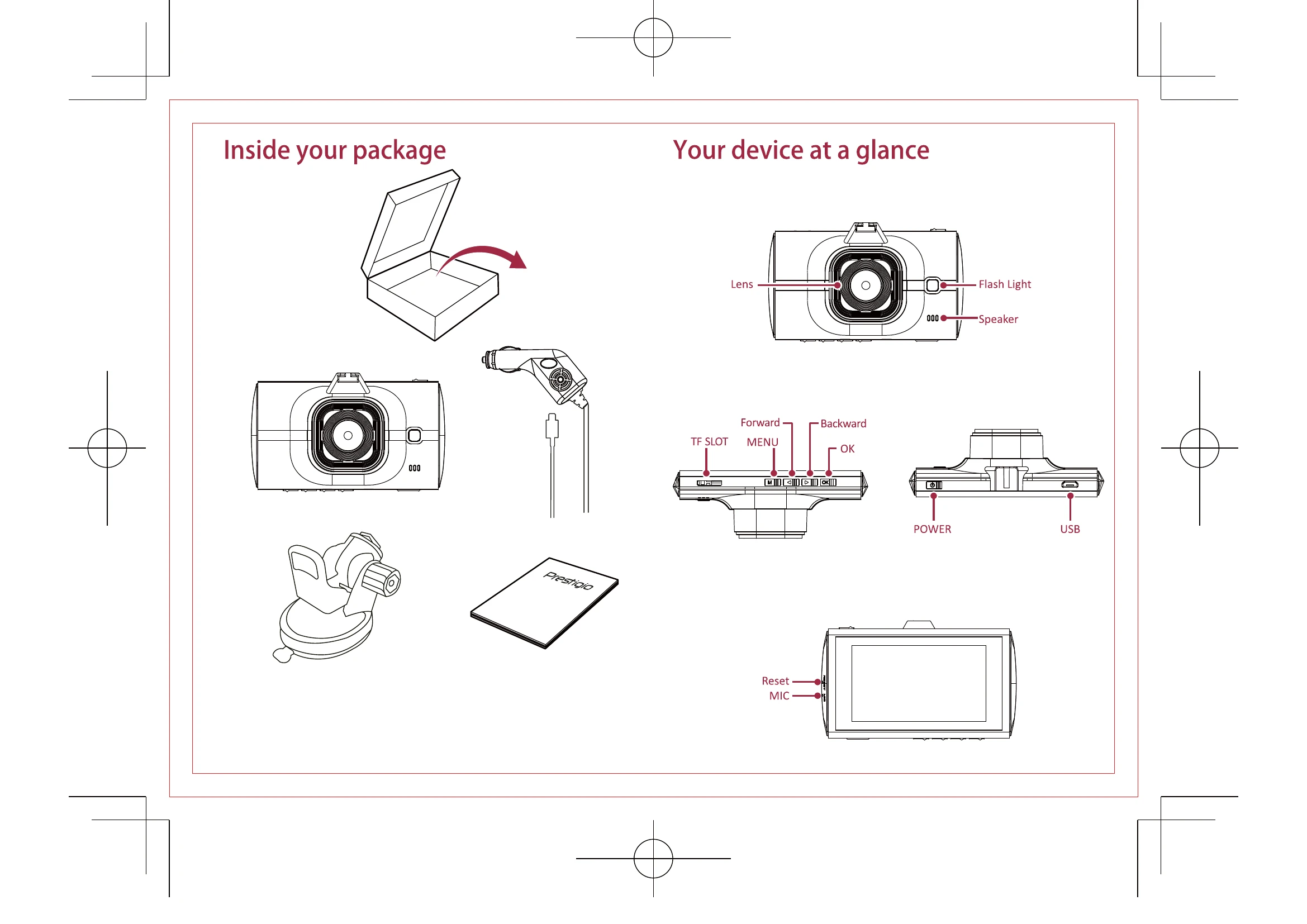
1. Insert a micro SD card (not included).
2. Connect the device to the car charger. When the car engine starts, the device will begin loop recording.
• Press [M] to select the picture mode, and then press [OK] to take photos.
In preview mode, press [M] to enter settings. Use [] [] to navigate the menu.
In preview mode, press [M] to select playback mode.
While viewing the file list, you can press [M] to select to:
| Issue | Solution |
|---|---|
| Device does not turn on | Fully charge the battery. For the first use, charge the battery for at least 1.5 hours using the car adapter or at least 3 hours via USB. |
| Cannot take a photo or record video | Check if there is enough free space on the memory card. Adjust resolution, picture quality, and frame rate. Replace the memory card if necessary. Delete some files to free up space. |
| "File Error" message when playing videos or photos | Format the memory card. |
| Device automatically stops recording | Use high-speed microSDHC Class 10 cards. MOV video format may not be supported on PC. Ensure audio and video are synchronized. |
| Unclear image | Clean the camera lens. Ensure the video recording resolution is set to maximum. |
| Device does not respond to controls | Ensure the memory card is correctly inserted. |