Brand: RICOH
Category: Digital Camera
Document Type:
Language: EN
Brand: RICOH
Category: Digital Camera
Document Type:
Language: EN
Uploaded: Aug. 9, 2025, 11:56 p.m.
Refer to the Operating Manual for detailed warranty information.
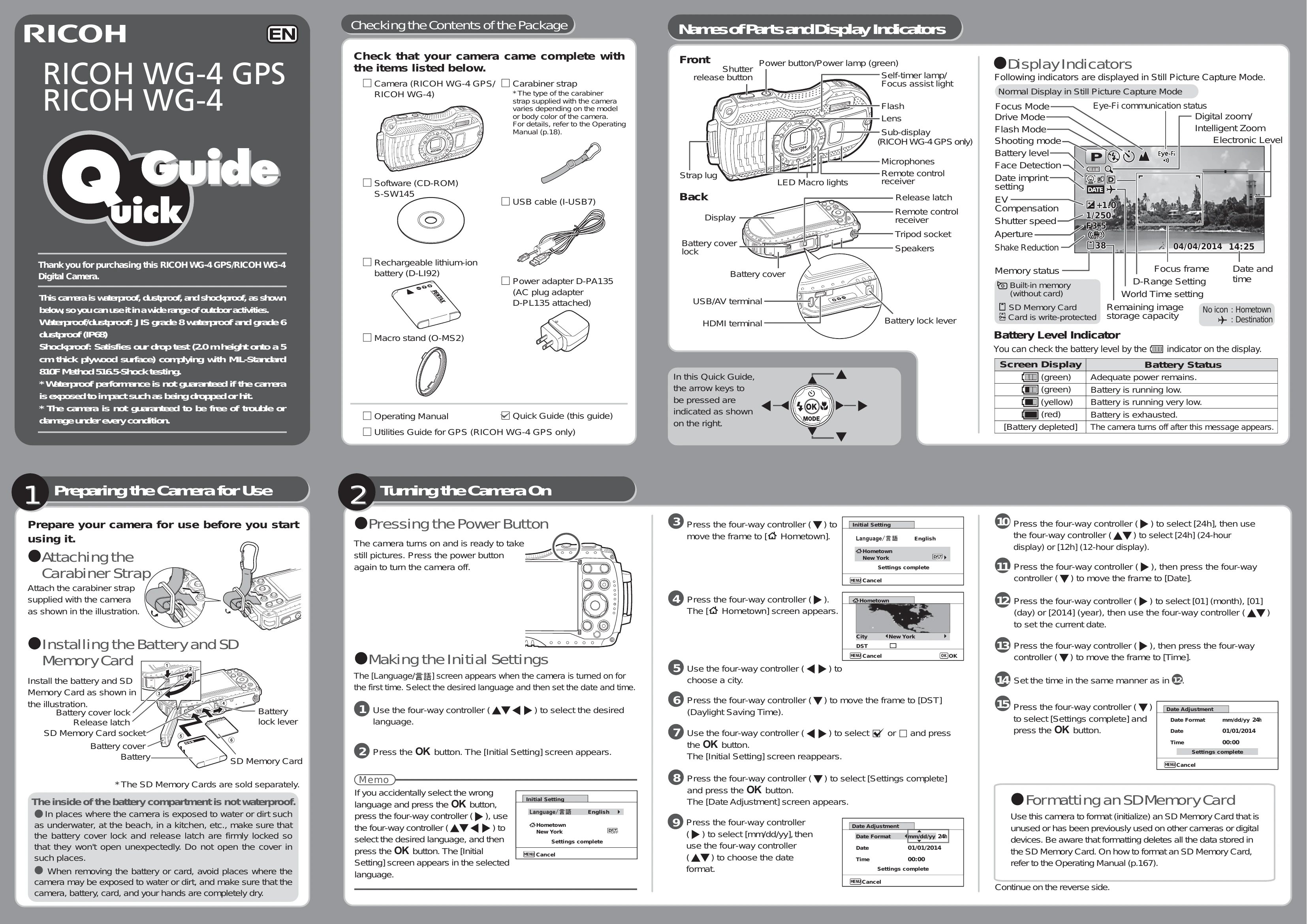
Attaching the Carabiner Strap: Attach the supplied carabiner strap to the camera as shown in the illustration.
Installing the Battery and SD Memory Card: Install the battery and SD Memory Card as shown in the illustration. Ensure the battery cover lock and release latch are firmly locked. The inside of the battery compartment is not waterproof.
Pressing the Power Button: Press the power button to turn the camera on or off.
Making the Initial Settings: Upon first use, follow the on-screen prompts to select the language and set the date and time. Use the four-way controller to navigate and the OK button to confirm.
Frame your subject, adjust zoom using W/T button if needed, then press the shutter release button halfway to focus. Once the focus frame turns green, press the shutter release button fully to take the picture. The flash may discharge automatically.
Selecting Shooting Mode: Use the four-way controller to access the Capture Mode Palette and choose the optimal shooting mode.
Selecting Flash Mode: Press the four-way controller (✔) to cycle through flash modes (Auto, Flash Off, Flash On, etc.).
Selecting Drive Mode: Press the four-way controller (▲) to cycle through drive modes (Standard, Self-timer, Remote Control).
Selecting Focus Mode: Press the four-way controller (►) to cycle through focus modes (AF Standard, Macro, Pan Focus, Infinity, Manual Focus).
Press the button after shooting to playback images. Use the four-way controller (◄►) to navigate between images. Pressing the button again displays thumbnails. Use the delete button to delete images.
Selecting a Playback Mode: Press the four-way controller (✔) in playback mode to access the Playback Mode Palette and select desired playback options like Slideshow.