Brand: Rollei
Category: Camera
Document Type: Manual
Language: EN
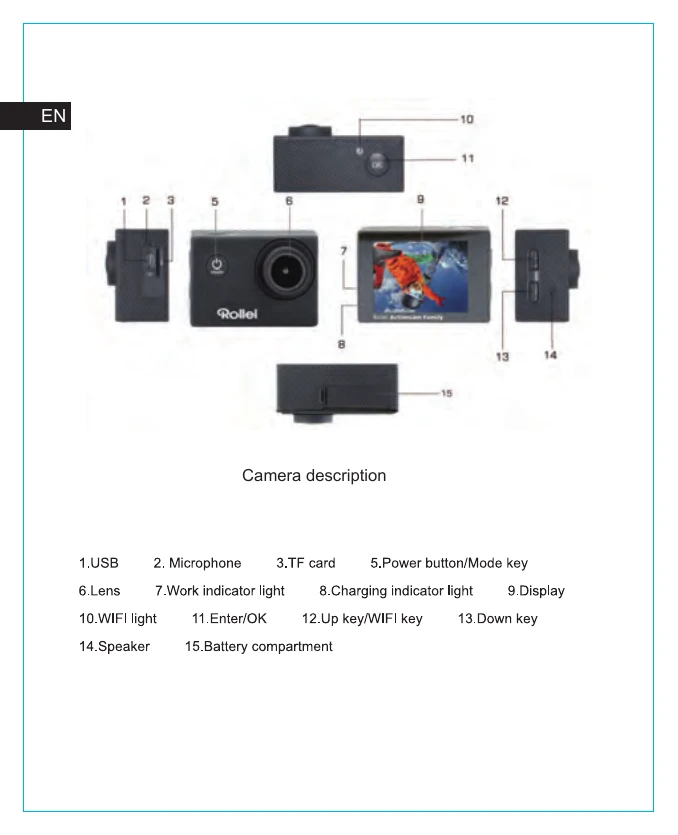
Brand: Rollei
Category: Camera
Document Type: Manual
Language: EN
Uploaded: Aug. 10, 2025, 12:32 a.m.
Turning On/Off: Press and hold the "Power button/Mode key" for about 3 seconds to turn the camera on. The blue light will illuminate and the display will show the start screen. To turn off, press and hold the same button for about 3-5 seconds until the blue light turns off and the end screen appears.
Mode Switching: Press the mode key to cycle through different modes: Video, Camera (Photo), Playback, and Setup. Icons on the top left of the screen indicate the current mode: a video camera icon for video mode, a camera icon for photo mode, a play icon for playback mode, and a gear icon for setup mode.
Recording Video: Insert a memory card, turn on the camera, and press the "Enter/OK key" to start recording. The blue light and a yellow circle will flash during recording. Press the "Enter/OK key" again to stop recording.
Taking Photos: Turn on the camera and switch to photo mode. Press the "Enter/OK key" to take a picture.
Playback: Switch to Playback mode using the "Power button/Mode key". Use the up and down keys to select an image or video, and press OK to view it.
Menu Settings: Access menu settings by pressing the "Power button/Mode key" and switching to the menu. Use the up and down keys to navigate and select options, and press Enter to enter sub-menus or confirm settings.
USB Connection: Connect the camera to a computer via USB. Select the desired mode (Mass Storage, PC Camera, or Charge battery) using the up and down keys and press Enter/OK to confirm. "Mass Storage" allows file transfer, "PC Camera" enables video communication, and "Charge battery" charges the camera.
WiFi Connection: Install the "Goplus Cam" app. Turn on the camera and press the up key to activate WiFi. The screen will show a WiFi logo and the SSID "AC Family_xxx" with a default password of 12345. Connect your smartphone/tablet to this WiFi network. Launch the app to view a live feed, record, take pictures, and download content.
| Problem | Solution | |
|---|---|---|
| Crash, black and white phenomenon occurred during use | Crash, black and white phenomenon occurred during use | If the camera freezes during normal use, please remove and re-install the battery. The camera returns to normal operating after turning it on again. |
| Camera will not turn on or operate | Camera will not turn on or operate | Please check if the battery is fully charged. Otherwise, pull out and reinsert the battery and turn the camera on. |
| Machine heating phenomenon occurs during use | Machine heating phenomenon occurs during use | This is a normal phenomenon because this camera is a precision digital device with a better sealing, the machine will have a certain amount of heat during use. |
| Record a video without sound, or play video with a lower sound | Record a video without sound, or play video with a lower sound | First, make sure the device is not inside the waterproof case, because the waterproof case belongs to seal parts. The sound cannot be played if the sound is turned off inside the menu. |
| Video is not running smooth, red and green blocks appear at the recording | Video is not running smooth, red and green blocks appear at the recording | Please format the memory with a computer and make sure to use a genuine high-speed memory card for recording. |
| WiFi signal instability | WiFi signal instability | The WiFi signal is susceptible to interference. Make sure that no barrier is around the unit to facilitate signal transmission and hold the smartphone not too far away from the camera unit. |
| WIFI Unable to connect | WIFI Unable to connect | First, check that the WiFi is turned on the camera. Then, re-connect the camera and the smartphone / tablet again with each other. |