Manual for Galaxy S25 Ultra

Manual for Galaxy S25 Ultra

Brand: SAMSUNG

Category: MOBILE PHONE

Document Type: Manual

Language: EN
Uploaded: Nov. 21, 2025, 7:04 p.m.

Manual Publish Date: 2025-05-01

Warranty Information

Warranty information is not explicitly detailed in this section of the manual.

Getting Started

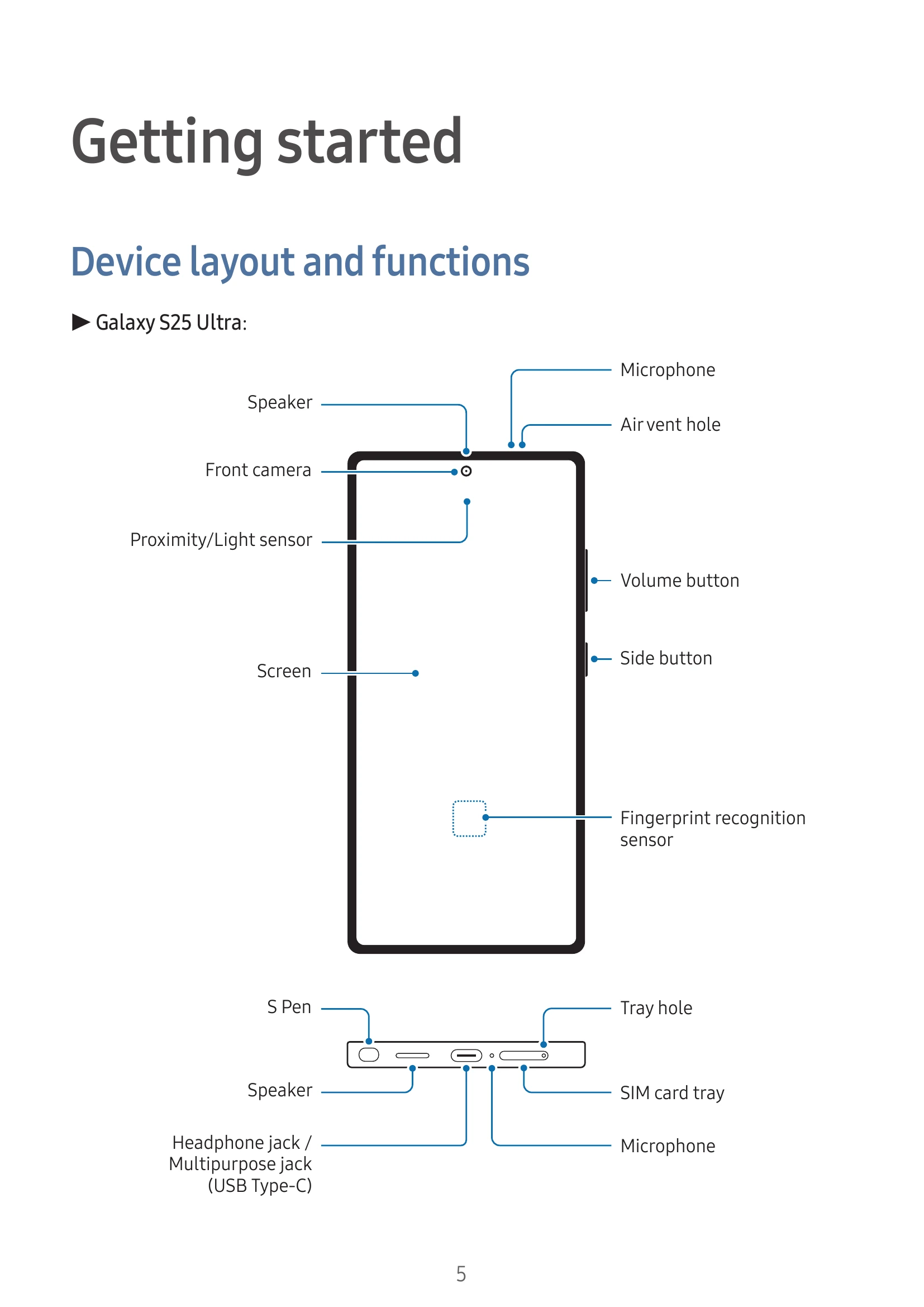
Device Layout and Functions

Familiarize yourself with the buttons, sensors, and ports of your Galaxy S25 Ultra and S25 Edge/S25/S25+.

Charging the Battery

Learn how to charge your device using wired and wireless charging methods. Includes precautions for wireless charging and quick charging tips.

Nano-SIM card and eSIM

Instructions on inserting a physical SIM card or downloading an eSIM. Covers SIM manager functions for dual SIM models.

Turning the Device On and Off

Steps to power on, power off, force restart, and make emergency calls. Includes managing medical information and emergency contacts.

Initial Setup

Follow on-screen instructions to set up your device after the first boot or data reset. Wi-Fi connection is recommended.

Using Networks

Connect to Wi-Fi, Bluetooth, NFC, or mobile networks. Manage mobile data usage.

Samsung Account

Sign in or create a Samsung account to access various Samsung services. Visit account.samsung.com for more information.

Troubleshooting and error codes

Issue Solutions
When you turn on your device or while you are using the device, it prompts you to enter one of the following codes:
  • Password: Enter the password for device lock.
  • PIN: Enter the PIN supplied with the SIM or USIM card. Can be turned off via Lock SIM card menu.
  • PUK: Enter the PUK supplied by your carrier if the SIM or USIM card is blocked.
  • PIN2: Enter the PIN2 supplied with the SIM or USIM card for specific menus. Contact your carrier for more information.
Your device displays network or service error messages
  • Move to an area with better signal if experiencing weak signals or poor reception.
  • Note: Models purchased in Germany may not receive signals in LTE TDD bands in certain countries.
  • Access some options may require a subscription. Contact your carrier.
Your device does not turn on Fully charge the battery before attempting to turn on the device.
Touch recognition works slowly or improperly
  • Check for screen protectors or accessories.
  • Ensure hands are clean and not wearing gloves. Avoid using sharp objects.
  • Avoid humid conditions or water exposure.
  • Restart the device.
  • Ensure software is updated.
  • If scratched or damaged, visit a Samsung Service Centre.
Your device freezes or encounters a fatal problem
  • Close apps or turn the device off and on again.
  • Force restart by pressing and holding the Side button and Volume Down button for over 7 seconds.
  • Perform a factory data reset after backing up important data. (Settings > General management > Reset > Factory data reset).
Calls are not connected
  • Ensure you are connected to the right cellular network.
  • Check call barring settings for outgoing and incoming calls.
Others cannot hear you speaking on a call
  • Ensure the built-in microphone is not covered.
  • Keep the microphone close to your mouth.
  • Ensure headphones are properly connected.
A cellular network or the internet is often disconnected or audio quality is poor
  • Ensure the device's internal antenna is not blocked.
  • Move to an area with better reception.
  • Wireless network services may be disabled due to carrier network issues when moving.
The battery does not charge properly (For Samsung-approved chargers)
  • Ensure the charger is connected properly.
  • Visit a Samsung Service Centre for battery replacement or charger support.
The battery depletes faster than when first purchased
  • Avoid extreme temperatures.
  • Battery consumption increases with features like GPS, games, or internet use.
  • Battery life naturally decreases over time.
Error messages appear when opening the camera
  • Charge the battery.
  • Free up storage space.
  • Restart the device.
  • Contact a Samsung Service Centre if issues persist.
Picture quality is poorer than the preview
  • Quality varies with surroundings and photography techniques.
  • Image noise or blur may occur in dark areas, at night, or indoors.
Error messages appear when opening multimedia files
  • Free up storage space.
  • Ensure files are not DRM-protected, or have the necessary license/key.
  • Ensure file formats are supported or install a supporting app.
  • Pictures and videos captured with other devices may not work properly.
  • Multimedia files authorized by carrier or service providers may have restrictions.
Bluetooth is not working well
  • Ensure the other Bluetooth device is ready to connect.
  • Ensure devices are within Bluetooth range (10 m).
  • Turn Bluetooth off and on again.
  • Reset Wi-Fi and Bluetooth settings. (Settings > General management > Reset > Reset Wi-Fi and Bluetooth settings).
  • Contact a Samsung Service Centre if issues persist.
A connection is not made when you connect the device to a computer
  • Ensure the USB cable is compatible.
  • Ensure proper computer drivers are installed and updated.
Your device cannot find your current location
  • Set the device to use Wi-Fi or a mobile network for location finding in areas with GPS signal obstruction.
Data stored in the device has been lost Always make backup copies of important data. Samsung is not responsible for data loss.
A small gap appears around the outside of the device case This is a normal manufacturing feature. Minor rocking or vibration may occur. The gap may expand slightly over time due to friction.
There is not enough space in the device's storage Delete unnecessary data (cache) or unused apps/files using the device care feature or manually.
The Home button does not appear The navigation bar may disappear in certain apps/features. Drag upwards from the bottom of the screen to access it.
Removing the battery Contact an authorized service center for battery removal. Do not attempt to remove it yourself to avoid personal injury or device damage.
Privacy Policy