Brand: SAMSUNG
Category: MOBILE PHONE
Document Type: Manual
Language: EN
Brand: SAMSUNG
Category: MOBILE PHONE
Document Type: Manual
Language: EN
Uploaded: Nov. 21, 2025, 9:05 p.m.
Manual Publish Date: 2025-07-01
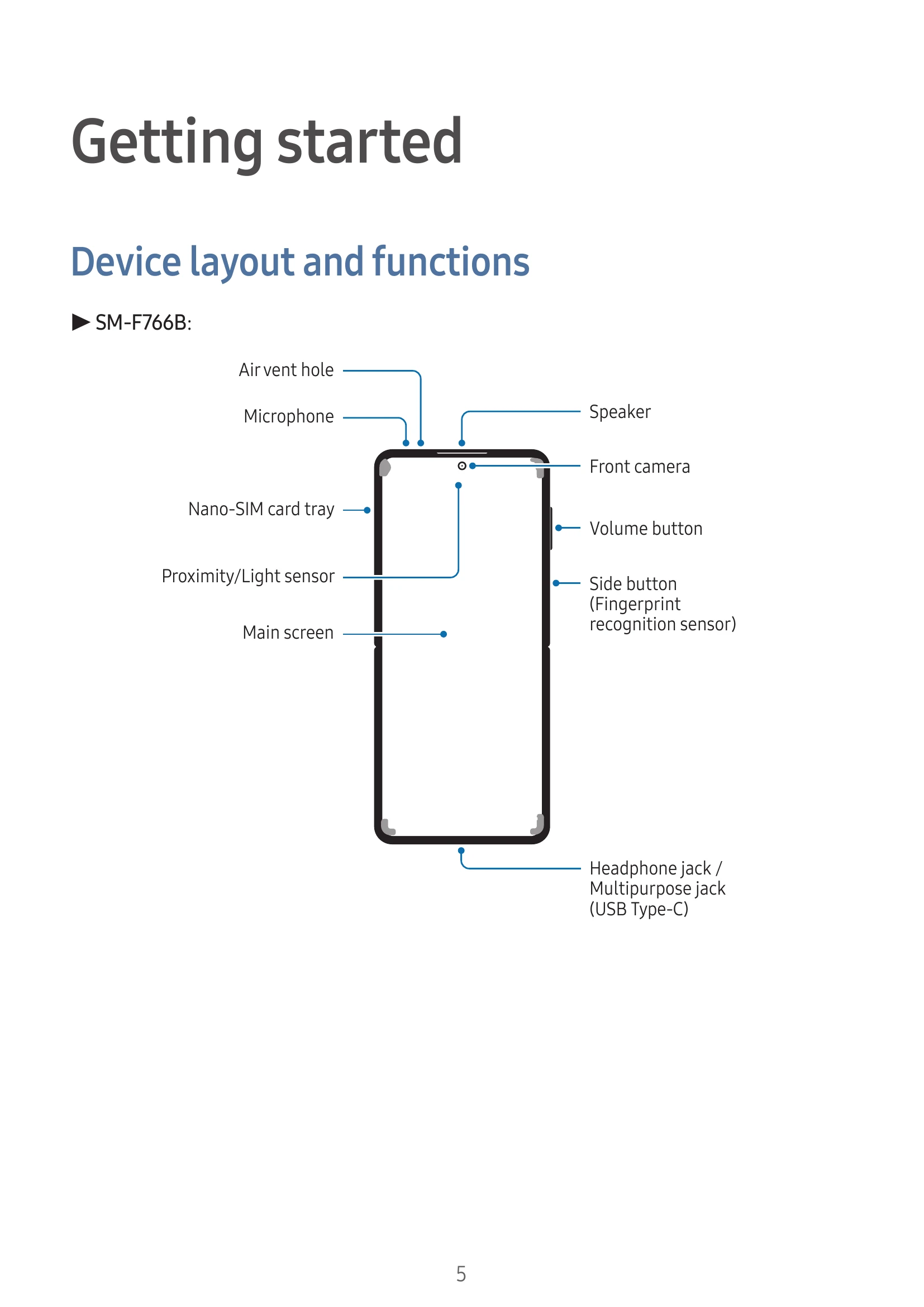
Familiarize yourself with the buttons, sensors, and ports of your device (SM-F766B and SM-F761B).
Learn how to charge your device using wired and wireless methods. Ensure correct positioning for wireless charging and follow precautions.
Instructions on inserting a nano-SIM card and downloading an eSIM. Includes SIM manager settings for managing SIM cards and eSIMs.
Steps for powering on, powering off, restarting, and forcing a restart of your device. Also covers emergency calls and medical information.
Guide to setting up your device for the first time, including network connections.
Instructions on signing in or creating a Samsung account for accessing Samsung services.
| Problem | Solutions |
|---|---|
| When you turn on your device or while you are using the device, it prompts you to enter one of the following codes: | • Password: When the device lock feature is turned on, you must enter the password you set for the device. • PIN: When using the device for the first time or when the PIN requirement is turned on, you must enter the PIN supplied with the nano-SIM card. You can turn off this feature by using the Lock SIM card menu. • PUK: Your nano-SIM card is blocked, usually as a result of entering your PIN incorrectly several times. You must enter the PUK supplied by your carrier. • PIN2: When you access a menu requiring the PIN2, you must enter the PIN2 supplied with the nano-SIM card. For more information, contact your carrier. |
| Your device displays network or service error messages | • When you are in areas with weak signals or poor reception, you may lose reception. Move to another area and try again. While moving, error messages may appear repeatedly. • You cannot access some options without a subscription. For more information, contact your carrier. |
| Your device does not turn on | When the battery is completely discharged, your device will not turn on. Fully charge the battery before turning on the device. |
| Touch recognition works slowly or improperly | • Touch recognition may not work properly in the following situations: - If you attach a screen protector or optional accessories to the screen - If you are wearing gloves, if your hands are not clean while touching the screen, or if you tap the screen with a sharp object or your fingertips - In humid conditions or when exposed to water • Restart your device to clear any temporary software problems. • Ensure that your device software is updated to the latest version. • If the screen is scratched or damaged, visit a Samsung Service Centre or an authorised service centre. |
| Your device freezes or encounters a fatal problem | Try the following solutions. If the problem is still not resolved, contact a Samsung Service Centre or an authorised service centre. Restarting the device: If your device freezes or hangs, you may need to close apps or turn off the device and turn it on again. Forcing restart: If your device is frozen and unresponsive, press and hold the Side button and the Volume Down button simultaneously for more than 7 seconds to restart it. Resetting the device: If these methods do not solve your problem, perform a factory data reset. Open Settings and tap General management → Reset → Factory data reset → Reset → Delete all. Before performing the factory data reset, remember to make backup copies of all important data stored in the device. |
| Calls are not connected | • Ensure that you have accessed the right cellular network. • Ensure that you have not set call barring for the phone number you are dialling. • Ensure that you have not set call barring for the incoming phone number. |
| Others cannot hear you speaking on a call | • Ensure that you are not covering the built-in microphone. • Ensure that the microphone is close to your mouth. • If you are using headphones, ensure that they are properly connected. |
| Sound echoes during a call | Adjust the volume by pressing the Volume button or move to another area. |
| A cellular network or the internet is often disconnected or audio quality is poor | • Ensure that you are not blocking the device's internal antenna. • When you are in areas with weak signals or poor reception, you may lose reception. You may have connectivity problems because of issues with the carrier's base station. Move to another area and try again. • When using the device while moving, wireless network services may be disabled because of issues with the carrier's network. |
| The battery does not charge properly (For Samsung-approved chargers) | • Ensure that the charger is connected properly. • Visit a Samsung Service Centre or an authorised service centre and have the battery replaced. Bring the charger and USB cable you are using for better service support. If wireless charging is not working, bring the wireless charger as well. |
| The battery depletes faster than when first purchased | • When you expose the device or the battery to very cold or very hot temperatures, the useful charge may be reduced. • Battery consumption will increase when you use certain features or apps, such as GPS, games, or the internet. • The battery is consumable and the useful charge will get shorter over time. |
| Error messages appear when opening the camera | Your device must have sufficient available storage and battery power to operate the camera app. If you receive error messages when opening the camera, try the following: • Charge the battery. • Free some storage by transferring files to a computer or deleting files from your device. • Restart the device. If you are still having trouble with the camera app after trying these tips, contact a Samsung Service Centre or an authorised service centre. |
| Picture quality is poorer than the preview | • The quality of your pictures may vary, depending on the surroundings and the photography techniques you use. • If you take pictures in dark areas, at night, or indoors, image noise may occur or images may be out of focus. |
| Error messages appear when opening multimedia files | If you receive error messages or multimedia files do not play when you open them on your device, try the following: • Free some storage by transferring files to a computer or deleting files from your device. • Ensure that the music file is not Digital Rights Management (DRM)-protected. If the file is DRM-protected, ensure that you have the appropriate licence or key to play the file. |
| • Ensure that the file formats are supported by the device. If a file format is not supported, such as DivX or AC3, install an app that supports it. To check the file formats that your device supports, visit the Samsung website. • Your device supports pictures and videos captured with the device. Pictures and videos captured by other devices may not work properly. • Your device supports multimedia files that are authorised by your carrier or providers of additional services. Some content circulated on the internet, such as ringtones, videos, or wallpapers, may not work properly. | N/A |
| Bluetooth is not working well | If another Bluetooth device is not located or there are connection problems or performance malfunctions, try the following: • Ensure that the device you wish to connect with is ready to be scanned or connected to. • Ensure that your phone and the other Bluetooth device are within the maximum Bluetooth range (10 m). • On your phone, open Settings, tap Connections, and then tap the Bluetooth switch to turn it on again. • On your phone, open Settings, tap General management → Reset → Reset Wi-Fi and Bluetooth settings → Reset settings to reset network settings. You may lose registered information when performing the reset. If these tips do not solve the problem, contact a Samsung Service Centre or an authorised service centre. |
| A connection is not made when you connect the device to a computer | • Ensure that the USB cable you are using is compatible with your device. • Ensure that you have the proper driver installed and updated on your computer. |
| Your device cannot find your current location | GPS signals may be obstructed in some locations, such as indoors. Set the device to use Wi-Fi or a mobile network to find your current location in these situations. |
| Data stored in the device has been lost | Always make backup copies of all important data stored in the device. Otherwise, you cannot restore data if it is damaged or lost. Samsung is not responsible for the loss of data stored in the device. |
| A small gap appears around the outside of the device case | • This gap is a necessary manufacturing feature and some minor rocking or vibration of parts may occur. • Over time, friction between parts may cause this gap to expand slightly. |
| There is not enough space in the device's storage | Delete unnecessary data, such as cache, using the device care feature or manually delete unused apps or files to free up storage space. |
| The Home button does not appear | The navigation bar containing the Home button may disappear while using certain apps or features. To access the navigation bar, drag upwards from the bottom of the screen. |
| You may hear a rattling sound when shaking the device | For devices with the Optical Image Stabilisation (OIS) feature or the Auto Focus (AF) feature in their cameras, this sound may occur as related internal components come into contact. This is a normal phenomenon because of the characteristics of the device. |