Manual for C27G7

Manual for C27G7

Brand: SAMSUNG

Category: Other

Document Type: Manual

Language: EN
Uploaded: Nov. 21, 2025, 7:25 p.m.

Warranty Information

Refer to the manual for warranty information; service fees may apply for non-defects or customer-caused damage.

Before Using the Product

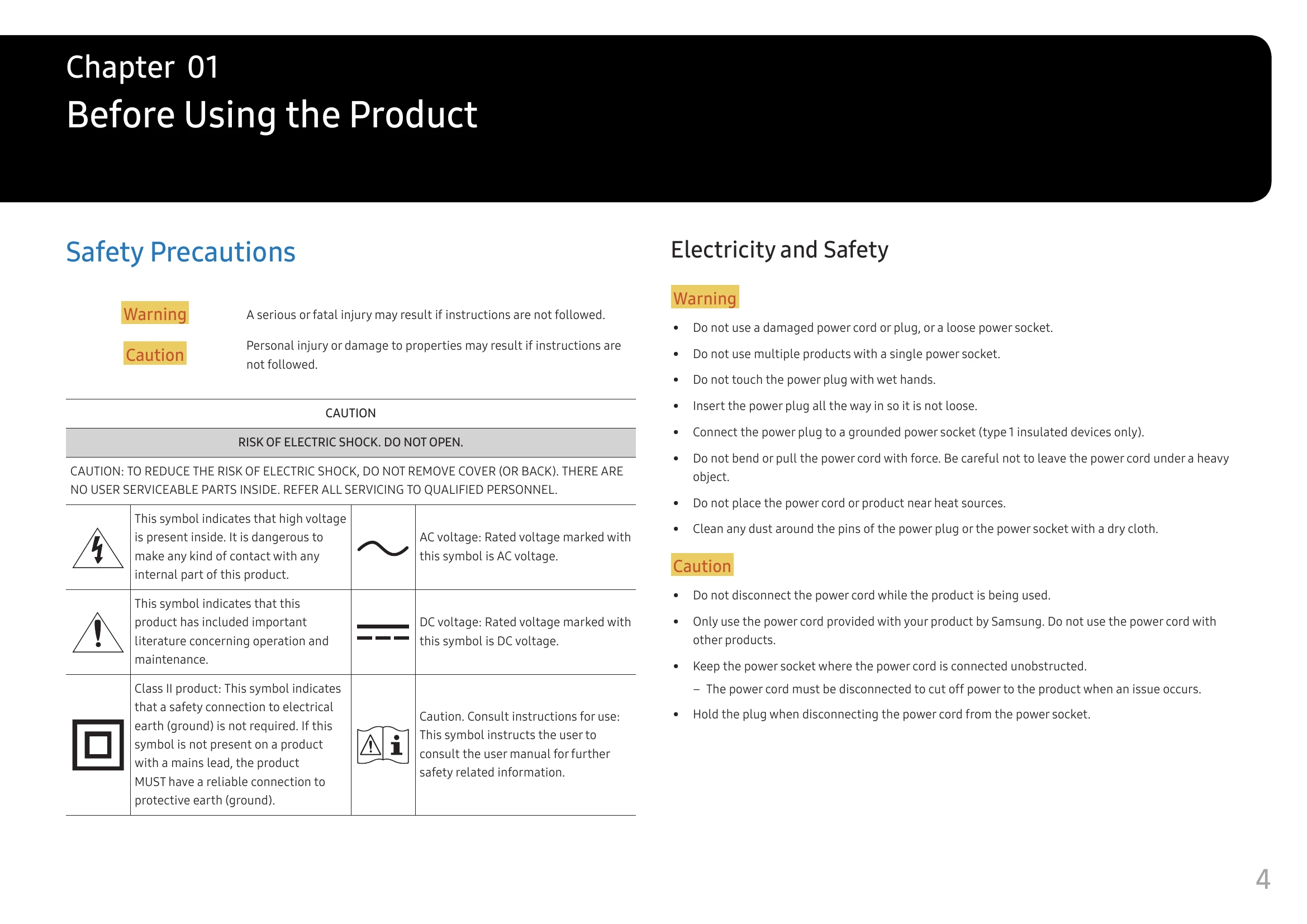
  • Safety Precautions: Read warnings and cautions regarding electricity, safety, installation, operation, and cleaning.
  • Electricity and Safety: Follow guidelines for safe power cord usage, grounding, and handling to prevent electric shock.
  • Installation: Install the product in a well-ventilated area, away from heat sources, unstable surfaces, and young children. Handle the curved screen with care.
  • Operation: Be aware of high voltage inside. Disconnect power before moving. Contact service for abnormal sounds or damage. Avoid inserting foreign objects or liquids.
  • Cleaning: Power off and disconnect before cleaning. Use a soft, dry cloth. Avoid harsh chemicals.
  • Correct Posture: Maintain proper sitting posture for eye comfort and ergonomics.

Preparations

  • Installation: Ensure adequate space for ventilation. Adjust tilt and height. Attach the anti-theft lock and BRACKET WALL if needed.
  • Control Panel: Familiarize yourself with the JOG button and Power LED functions.

Connecting and Using a Source Device

  • Ports: Identify and understand the function of each port (HDMI, DP, USB).
  • Connections: Connect PCs using HDMI, HDMI-DVI, or DP cables. Connect headphones. Connect the power adapter. Use the product as a USB HUB.
  • Setting Optimum Resolution: Follow on-screen prompts or refer to Q&A for optimal resolution settings.

Game

  • Refresh Rate: Adjust screen refresh rate for eye comfort.
  • Black Equalizer: Adjust brightness of dark areas for better visibility in games.
  • Response Time: Accelerate panel response rate for vivid video.
  • Adaptive-Sync (NVIDIA): Eliminate screen tearing and lag.
  • FreeSync (AMD): Similar to Adaptive-Sync for AMD graphics cards.
  • Low Input Lag: Reduce input lag for a better gaming experience.
  • Virtual Aim Point: Display a virtual aim point on the screen.
  • Screen Size: Adjust screen size settings.

Picture Settings

  • Picture Mode: Select preset picture modes.
  • Brightness, Contrast, Sharpness, Color: Adjust basic picture quality settings.
  • Black Level, Eye Saver Mode: Fine-tune black levels and reduce blue light.
  • Screen Adjustment, Calibration Report: Adjust screen settings and view calibration reports.

PIP/PBP Settings

  • Configure Picture-in-Picture and Picture-by-Picture modes.

System Settings

  • OnScreen Display: Language, Display Time.
  • System: Infinity Core Lighting, Local Dimming, Volume, Dynamic Contrast, Off Timer Plus, PC/AV Mode, USB Super Charging, DisplayPort Ver., Input Port Ver., Auto Source Switch, Key Repeat Time, Power LED On, VRR Control.

Support

  • Self Diagnosis: Run a diagnostic test for picture issues.
  • Software Update: Update product firmware via USB.
  • Information: View current software information.
  • Reset All: Reset product settings to factory defaults.

Installing the Software

  • Easy Setting Box: Install software for partitioning screen sections.
  • Driver Installation: Install drivers for optimum resolution and frequency.

Troubleshooting Guide

  • Requirements Before Contacting Samsung Customer Service Centre: Self-diagnosis, check resolution and frequency.
  • Screen Issue: Troubleshoot no image, flickering, blurry screen, distorted images, brightness, and color issues.
  • Sound Issue: Troubleshoot no sound or audio issues.
  • Source Device Issue: Troubleshoot issues related to PC booting sounds.
  • Check the following: General troubleshooting tips.
  • Q&A: Frequently asked questions on changing frequency, resolution, and power-saving mode.

Specifications

  • General: Model name, size, display area, pixel pitch, power supply, signal connectors, environmental conditions, plug-and-play, panel dots.
  • Standard Signal Mode Table: Lists supported resolutions, frequencies, and ports.

Appendix

  • Responsibility for the Pay Service: Conditions for charging service fees.
  • Not a product defect: Clarifies what is not considered a product defect.
  • A Product damage caused by customer's fault: Lists damages caused by the customer.
  • Others: Conditions for service fees not related to product defects or customer faults.

Troubleshooting and error codes

Screen Issue Troubleshooting Steps
Power LED is off. The screen will not switch on. Check that the power cable is connected properly. If a problem occurs with the monitor screen, run Self Diagnosis to check that the monitor is working properly.
The message Check the cable connection and the settings of the source device. appears. Check that the cable is properly connected to the product. If the monitor is in HDMI, DisplayPort1 or DisplayPort2 mode, press the JOG button to display the Function Key Guide screen and select the System → PC/AV Mode → HDMI, DisplayPort1, DisplayPort2 → PC or AV.
Not Optimum Mode is displayed. This message appears when the signal from the graphics card exceeds the maximum resolution or frequency for the product. Change the maximum resolution and frequency to suit the product performance, referring to Standard Signal Mode Table (P.43).
The images on the screen look distorted. Check the cable connection to the product.
The screen is not clear. The screen is blurry. Remove any accessories (video extension cable, etc.) and try again. Set the resolution and frequency to the recommended level.
The screen appears unstable and shaky. There are shadows or ghost images left on the screen. Check that the resolution and frequency for the PC are within the range of resolution and frequency compatible with the product. Next, if required, change the settings, referring to Standard Signal Mode Table (P.43) in this manual and the Information menu on the product.
The screen is too bright. The screen is too dark. Adjust Brightness and Contrast.
Screen colour is inconsistent. Change the Color settings.
The colours on the screen have a shadow and are distorted. Change the Color settings.
White does not really look white. Change the Color settings.
There is no image on the screen and the power LED blinks every 0.5 to 1 second. The product is operating in power-saving mode. Press any key on the keyboard or move the mouse to return to normal operating mode.
Text is blurry. If using a Windows OS (e.g. Windows 7, Windows 8, Windows 8.1 or Windows 10): Go to Control Panel → Fonts → Adjust ClearType text and change Turn on ClearType.
Video playback is choppy. Playback of high-definition large video files can be choppy. This may be because the video player is not optimised for the PC resource. Try playing the file on another video player.
There is no sound. Re-check the condition of the connected audio cable and/or adjust the volume. Check the volume. Check whether audio is set to mute.
The volume is too low. Adjust the volume. If the volume is still low after turning it up to the maximum level, adjust the volume on your PC sound card or software programme.
Video is available but there is no sound. Sound cannot be heard if an HDMI-DVI cable is used to connect the input device. Connect the device using an HDMI cable or a DP cable.
A beeping sound is heard when my PC is booting. If a beeping sound is heard when your PC is booting, have your PC serviced.
Privacy Policy