Quick Start Guide for SM-R140

Quick Start Guide for SM-R140

Brand: SAMSUNG

Category: Other

Document Type: Quick Start Guide

Language: EN
Uploaded: Nov. 21, 2025, 6:34 p.m.

Warranty Information

Samsung Electronics America, Inc. is the provider of this product. See the "Legal" section for details.

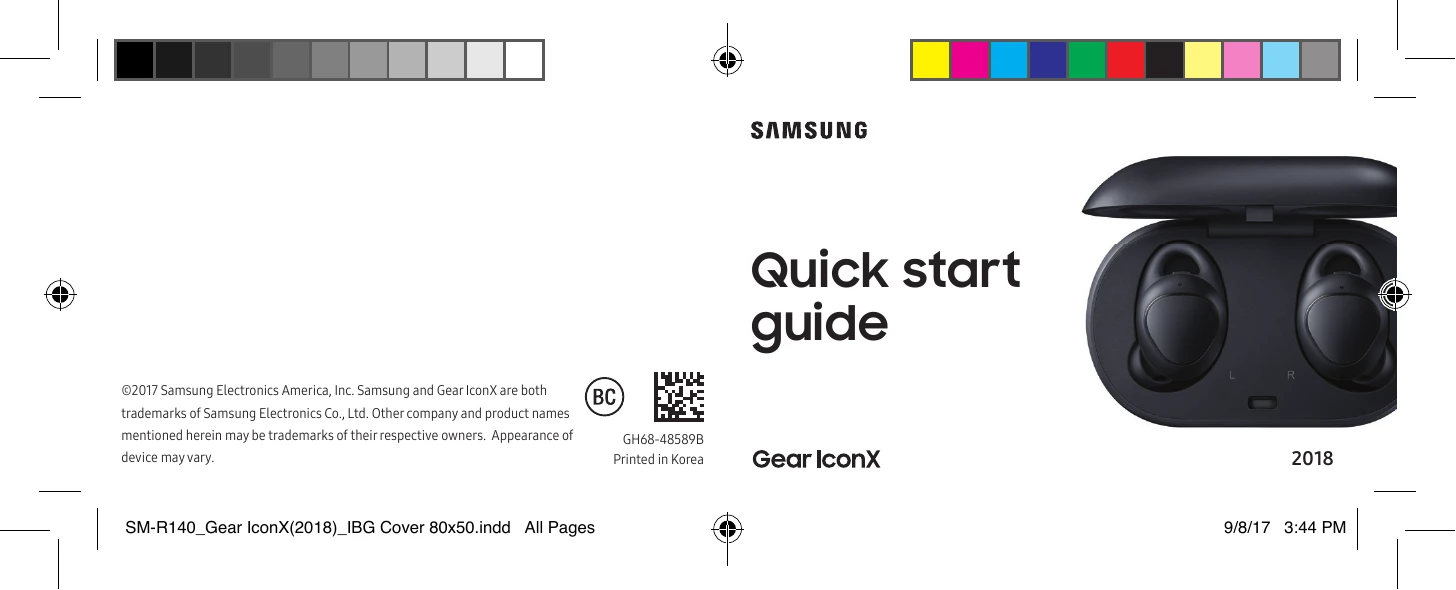
  • Unboxing: Includes charging case, earbuds, USB connection adapters, USB cable, and wingtips/eartips.
  • Know your device: Identify earbuds (touchpad, microphone, wingtip, touch sensitive sensor, eartip) and charging case (USB/charging port, pairing button).
  • Charging: Wipe sweat from earbuds, place in case, and connect case to a USB power adapter. Earbuds and case charge simultaneously.
  • Connections: Compatible with Android 4.4+ with 1.5GB RAM. Connect with Samsung Galaxy devices for best results. Initiate Bluetooth pairing by opening the charging case.
  • Gear Manager: Install the Samsung Gear app to manage earbuds (connection, battery, volume, exercise, music, settings).
  • Pairing: Open case to initiate pairing. If needed, press and hold the pairing button. Tap CONNECT on your smartphone.
  • Touchpad controls: Single tap for play/pause, double tap for next track/answer call, triple tap for previous track. Swipe for volume. Tap and hold for voice command/ambient sound/reject call. Double tap and hold for next playlist.
  • Ambient Sound: Use Gear Manager to turn on Ambient Sound for awareness of surroundings.
  • Transfer Music: Connect case to phone via USB to transfer music using Gear Manager, or connect case to PC using USB cable and Gear IconX PC Manager.
  • Software Updates: Updates are mediated by the Samsung Gear app or IconX PC Manager.

Troubleshooting and error codes

Indicator Meaning
Red (Earbud) Charging
Green (Earbud) Fully Charged
Flashing Red (Earbud) Charging disabled due to low case battery, abnormal temperatures, or charging contact error.
Red (Case) Charging or below 30% battery
Green (Case) Fully Charged or above 60% battery
Yellow (Case) Between 30% and 60% battery
Flashing Red (Case) Charging disabled or error due to abnormal temperatures or low case battery.
Blue (Case) Updating firmware
Alternates (Red, Green, Blue) (Case) In pairing mode
Privacy Policy