Brand: SANYO
Category: Camcorder
Document Type: Manual
Language: EN
Brand: SANYO
Category: Camcorder
Document Type: Manual
Language: EN
Uploaded: Nov. 21, 2025, 8:30 p.m.
Manual Publish Date: null
No warranty information is available in the provided document pages.
For first-time users, read \"SETUP\" and \"SIMPLE\" sections, plus the \"QUICK GUIDE\".
\nTo use various camera features, read \"NORMAL\" and \"OPTION SETTINGS\". For TV viewing, see \"OTHER DEVICES AND CONNECTIONS\". For computer connection, see \"Xacti Software CD INSTRUCTION MANUAL\".
\nTo use additional features like editing or DVD burning, read the \"Xacti Software CD INSTRUCTION MANUAL\".
\nCommon questions and troubleshooting can be found in \"COMMONLY ASKED QUESTIONS\" (p. 153) and \"TROUBLESHOOTING\" (p. 161).
\nHINT: Extended instructions or special points.
\nCAUTION: Points requiring special attention.
\n(page xx): Refer to the indicated page for details.
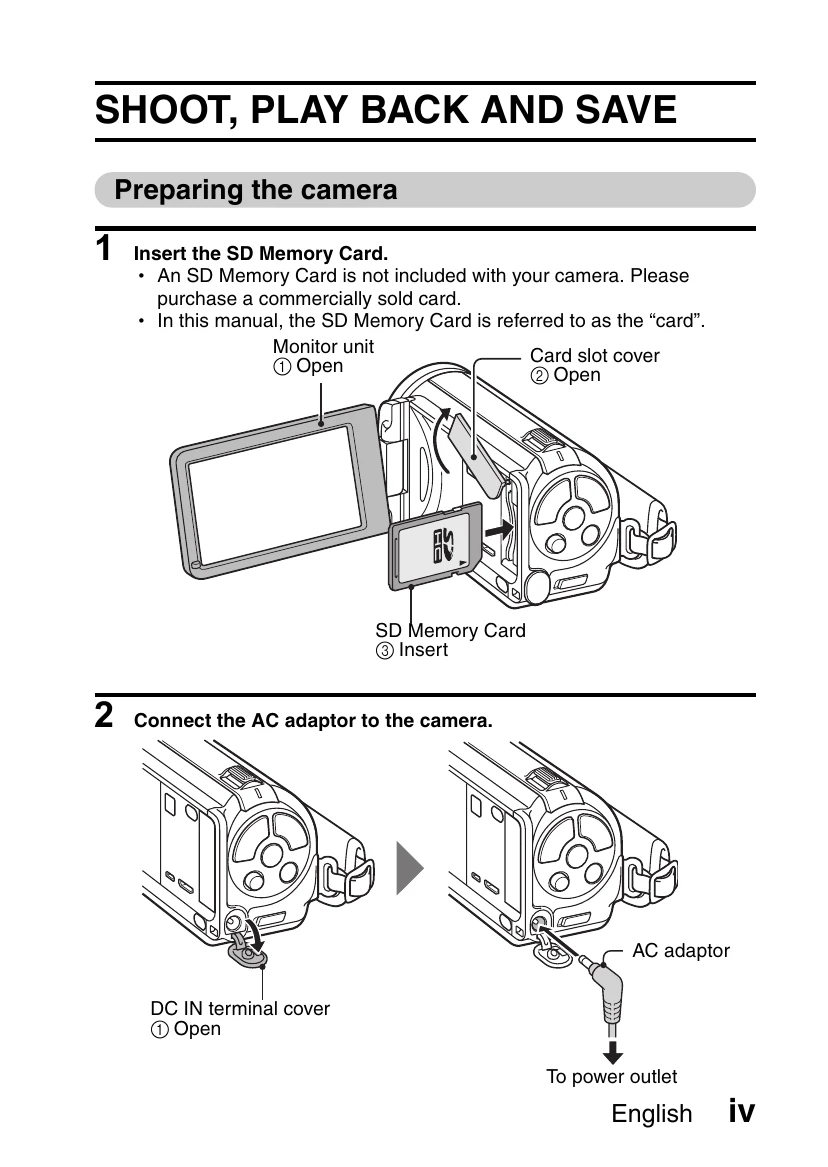
\n\n1. Insert the SD Memory Card. An SD Memory Card is not included. Purchase separately. Referred to as \"card\" in this manual.
\n2. Connect the AC adaptor to the camera.
\n\n1. Turn the camera on: Press ON/OFF button for at least 1 second. If date/time screen appears, press MENU twice to cancel.
\n2. Record: For video, press [REC] button to start, press again to stop. For photos, press [PHOTO] button.
\n\n1. Press REC/PLAY button.
\n2. Select image: Use SET button (left, right, up, down) to move frame. Image info is at the bottom.
\n3. Press SET button. Playback begins. Press REC/PLAY to return to recording mode.
\n\nPress ON/OFF button for at least 1 second to turn off.
\n\nConfirm your computer is connected to the Internet.
\n\nUse the supplied CD-ROM (Xacti Software CD) to store images on DVD.
\n1. Set CD-ROM in DVD drive. Installation window opens.
\n2. Click [Nero 8 Essentials]. Follow on-screen instructions to install.
\n3. Click [Finish] and remove CD-ROM.
\nUsing Blu-ray Disks/AVCHD: Upgrade Nero 8 Essentials (paid service). Internet connection required.
\nKodak online service: Click [No thanks!] to skip.
\n\n1. Use supplied USB cable to connect camera to computer.
\n2. Turn on camera. USB Connection Screen appears.
\n3. Select \"COMPUTER\", press SET.
\n4. Select \"CARD READER\", press SET. Camera recognized as a drive.
\n5. Copy files: Data stored in XACTI (E:)\\DCIM\\\u00***SANYO. See Xacti Software CD INSTRUCTION MANUAL for details.
\n\n1. Insert blank DVD.
\n2. Click Start -> [All Programs] -> [Nero 8] -> [Nero Vision Essentials].
\n3. Under \"What would you like to do?\", point to [Make DVD] and click [DVD-video].
\n4. Click \"Third party patent activation\" on the tool bar. Follow on-screen instructions for activation.
\n5. Click [Close].
\n6. Click [Add video files].
\n7. Click on a file to burn. Hold [Ctrl] to select multiple files.
\n8. Click [Open].
\n9. Click [Next].
\n10. Click a design under \"Templates\", then [Next].
\n11. Click [Next].
\n12. Click [Burn].
\n13. Click [Yes].
\n14. Click [Save].
\n15. Click [Finish].
\n16. Click [Yes].
\n17. Click [Save].
\n| Color | Multi-indicator status | Camera status |
|---|---|---|
| Green | Lit | Connected to a computer or printer |
| Flashing | Power save mode active | |
| Orange | Lit | Connected to a TV |
| Red | Lit | Charging |
| Slow | Battery charge error or rise in internal temperature | |
| Fast | During self-timer photography | |
| Very fast | Accessing memory |