Manual for PDP-42H1ENV

Manual for PDP-42H1ENV

Brand: SANYO

Category: Video

Document Type: Manual

Language: EN
Uploaded: Nov. 21, 2025, 6:40 p.m.

Warranty Information

Warranty information is not explicitly stated in this section.

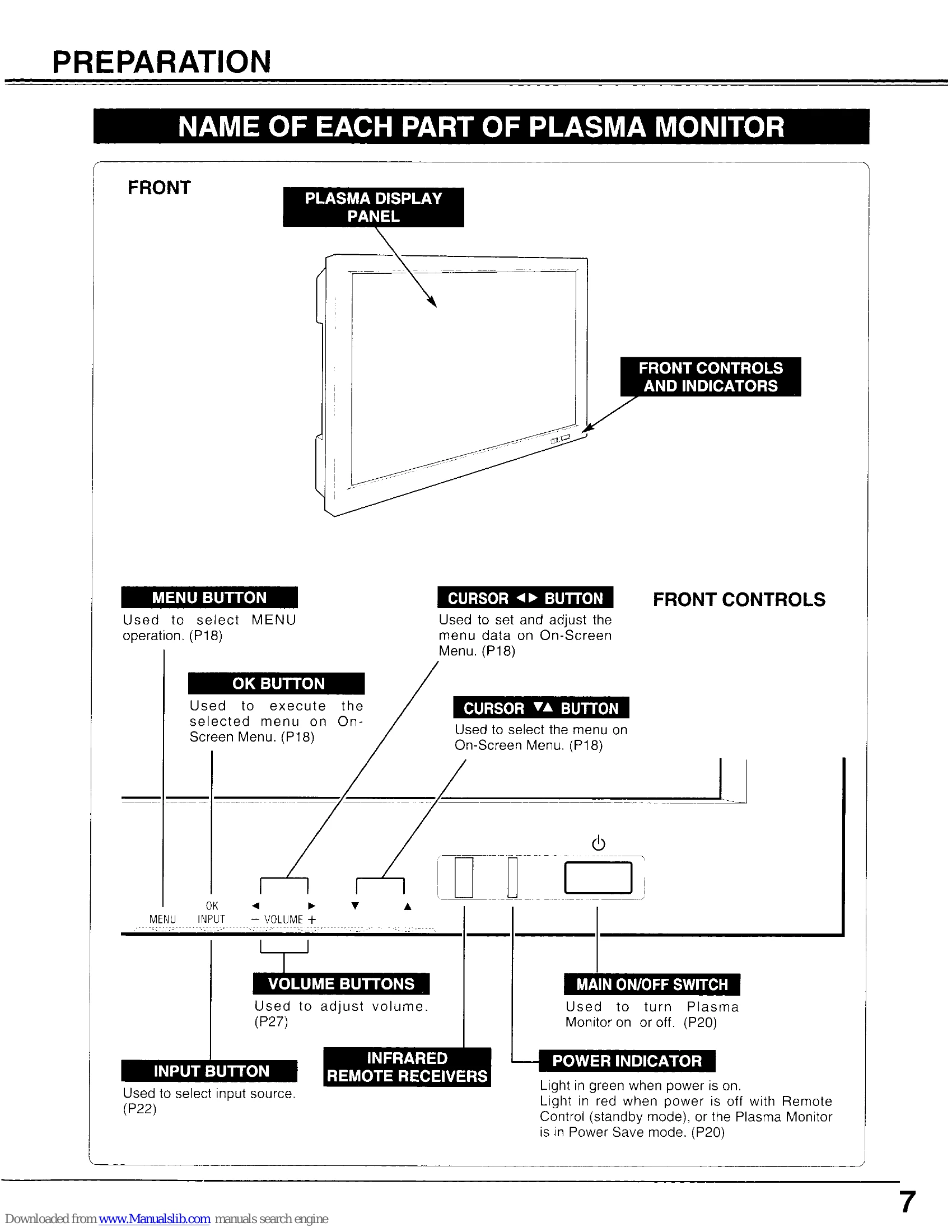
  • Turning On/Off Plasma Monitor: Complete connections, plug into AC outlet, press MAIN ON/OFF switch on front to turn on. Use POWER ON-OFF button on remote to turn on/off when MAIN ON/OFF is already on.
  • Off Timer: Press OFF TIMER button on remote to set power off after 30, 60, 90, or 120 minutes. Check remaining time by pressing the button once. Cancel by setting to 0.
  • Selecting Input Source: Use VIDEO button for AV1, AV2, AV3. Use COMPONENT button for Component input. Use PC/RGB button for PC, RGB1, RGB2. Use INPUT button on front controls.
  • Selecting Video System: Access Setup menu, select 'Color system' and choose from Auto, NTSC, PAL, SECAM, etc. For Y, Pb/Cb, Pr/Cr jacks, select 'Video format' (Auto, 480i, 575i, etc.).

Troubleshooting and error codes

Problem: Try these Solutions
No power.
  • Plug Plasma Monitor into the AC outlet.
  • Check MAIN ON / OFF Switch is in the ON position.
  • Within 4 seconds after turning off Plasma Monitor, the Plasma Monitor cannot be turned on again.
  • Check POWER Indicator. If this indicator flashes, Plasma Monitor has any trouble. (P39)
Remote Control Unit does not work.
  • Check the batteries.
  • Make sure nothing is between the Remote Receiver and the Remote Control Unit.
  • Make sure you are not too far from Plasma Monitor when using the Remote Control Unit. Maximum operating range is 16.4' (5m).
  • Is direct sunlight or strong artificial light shining on the Plasma Monitor's Infrared Remote Receiver? Eliminate the light by closing curtains, pointing the light in a different direction, etc.
No image.
  • Check the connection between the computer or video equipment and Plasma Monitor.
  • When turning Plasma Monitor on, it takes a few seconds to display the image.
  • Check the system that you select is corresponding with the computer or the video equipment.
  • Make sure the temperature is not out of the Operating Temperature (0°C ~ 40°C).
  • Is the Power Save function in the standby or off mode? (In PC mode) Operate the computer (move the mouse, etc.).
No sound.
  • Check speaker cable connection.
  • Check audio cable connection from audio input source.
  • Adjust the audio source.
  • Press VOLUME (+) button.
  • Press MUTE button.
The message "Warning! ..." is displayed.
  • When the message "Warning! Internal fan is in trouble, not working properly." is displayed, the internal cooling fan has trouble. (Refer to P38)
  • When the message "Warning! Internal temperature is too high." is displayed, the internal temperature of Plasma monitor exceeds the normal temperature. After displaying this message for 10 seconds, Plasma Monitor will be turned off automatically. (Refer to P39)
Afterimages (ghosts) appear.
  • Do not display one non-movement image on the screen for a long period of time. Otherwise, an afterimages or ghosts may appear on a part of the panel.
  • Use the Screen Saver function. (Refer to P34)
  • Display a moving picture. Afterimage may be disappeared gradually.
There are tiny black points and/or bright points on the PDP. There may be some tiny black points and/or bright points on PDP (Plasma Display Panel). These points are normal.
The POWER indicator is flashing. (No power) The Plasma Monitor has trouble, and Self Diagnose function activates. (Refer to P39)
Privacy Policy