| There is no picture or sound. |
- Is the power cord disconnected? (See page 14.)
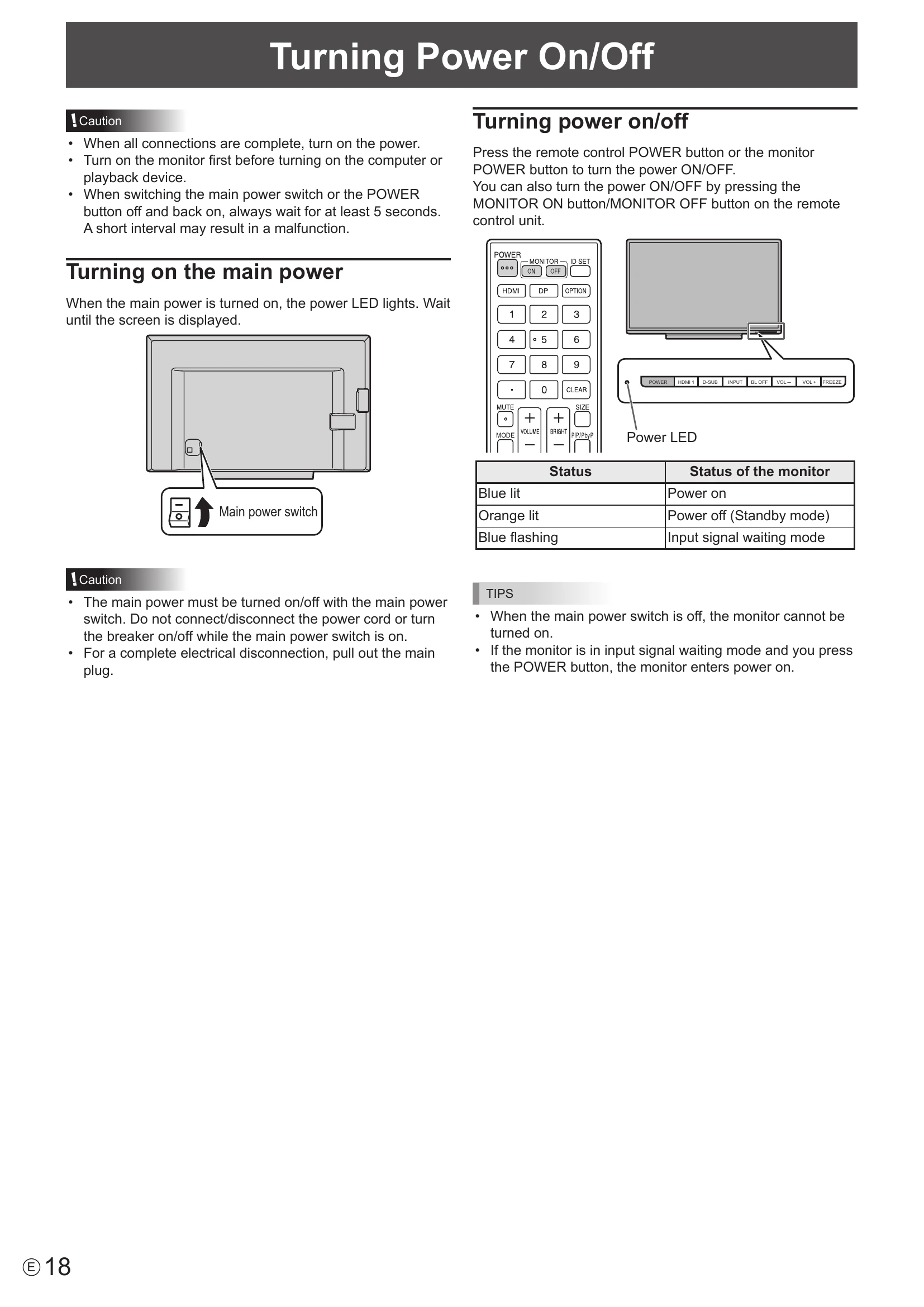
- Is the main power switch off? (See page 18.)
- Make sure correct input mode is selected. (See page 23.)
- If any external equipment is connected, make sure the equipment is operating (playing back).
|
| Remote control does not work. |
- Are the batteries inserted with polarity (+,-) aligned? (See page 16.)
- Are the batteries exhausted?
- Point the remote control unit toward the monitor's remote control sensor. (See page 16.)
- Is the remote control operation in FUNCTION menu enabled? (See page 30.)
|
| Sound from left and right speakers is reversed. |
- Sound is heard from only one side.
- Are audio cables connected properly? (See page 13.)
- Check the setting of BALANCE of AUDIO SETTINGS for AUDIO menu. (See page 27.)
|
| There is a picture but no sound. |
- Is the sound muted? (See page 22.)
- Make sure the volume is not set to minimum. (See page 22.)
- Are audio cables connected properly?
- When AUDIO OUTPUT is set to VARIABLE in the OTHERS menu, the speaker is muted. Check the setting. (See page 28.)
|
| Unstable video. |
- The signal may be incompatible. (See pages 37 to 38.)
- Try the automatic screen adjustment when D-SUB (PC) (INPUT5) is used. (See page 29.)
|
| The video from the HDMI input terminal does not appear properly. |
- Is the HDMI cable HDMI standard compliant? The monitor will not work with cables that are not standard compliant.
- Is the input signal compatible with this monitor? (See pages 37 to 38.)
|
| The video from D-sub input terminal does not appear correctly. |
- Is the input signal compatible with this monitor? (See page 37.)
|
| Video color is strange. |
- Is the PICTURE menu setting correct? You can execute RESET to return to the factory default settings. (See page 26.)
|
| Control buttons do not work. |
- Load noises from outside may be interfering with normal operation. Turn off the power and turn it on after waiting at least 5 seconds, and then check the operation. (See page 18.)
- Turn on the monitor first before turning on the computer or playback device.
|
| There is no picture. |
- Computer resolution changes automatically.
- If you turn the power switch off and then back on again connecting the computer with a graphic card, the resolution may change to 640 x 480. The resolution changes back to 1920 x 1080 according to the following steps.
- Disconnect and connect the video cable.
- Press the DETECT button when the SCREEN RESOLUTION is displayed. (For Windows)
- Reboot the computer.
|
| The touch panel does not respond. |
- Is the USB cable connected properly?
- If you want to position the monitor further away than the USB cable will allow, extend the cable using a USB cable with a repeater.
|
| The response of the touch screen is slow. |
- Some parts of the screen do not respond.
- A different place is touched
- Is the screen exposed to direct sunlight or other strong light? The touch panel uses infrared rays and thus may not operate correctly.
- Is there an obstacle between the infrared transmitter/receiver and the touch pen or your finger? An obstacle will prevent correct operation. If your fingers or a sleeve are too close to the screen, correct operation will not be possible.
- Is the infrared transmitter/receiver dirty? Gently wipe off any dirt with a soft cloth.
- If the touch panel is touched with a small tip less than about 5/16 inch (8 mm) x 5/16 inch (8 mm), the touch may not be detected by infrared and correct operation will not take place.
- When starting your computer or connecting the USB cable, do not touch the touch panel. If you touch the touch panel, this may be detected as an element failure in the infrared transmitter/receiver and incorrect operation will result.
- When two touch pens are used, it may not be possible to write correctly.
- When touch pens are moved near each other.
- When a pen is held at an angle while writing.
|
| The Power LED lights blue and orange alternately. (Alternates rapidly at intervals of 0.5 seconds.) |
- Hardware has a problem. Turn off the monitor and request repair from your SHARP dealer.
|
| The Power LED lights blue and orange alternately. (At intervals of 1 second.) |
- High temperature inside the monitor. Remove the cause of the excessive temperature rise.
|
| The monitor makes a cracking sound. |
- You may occasionally hear a cracking sound from the monitor. This happens when the cabinet slightly expands and contracts according to change in temperature. This does not affect the monitor's performance.
|