Manual for DV-SV90S(RU)

Manual for DV-SV90S(RU)

Brand: SHARP

Category: Home Appliances

Document Type: Manual

Language: EN
Uploaded: Nov. 21, 2025, 6:06 p.m.

Warranty Information

This manual does not contain specific warranty period information.

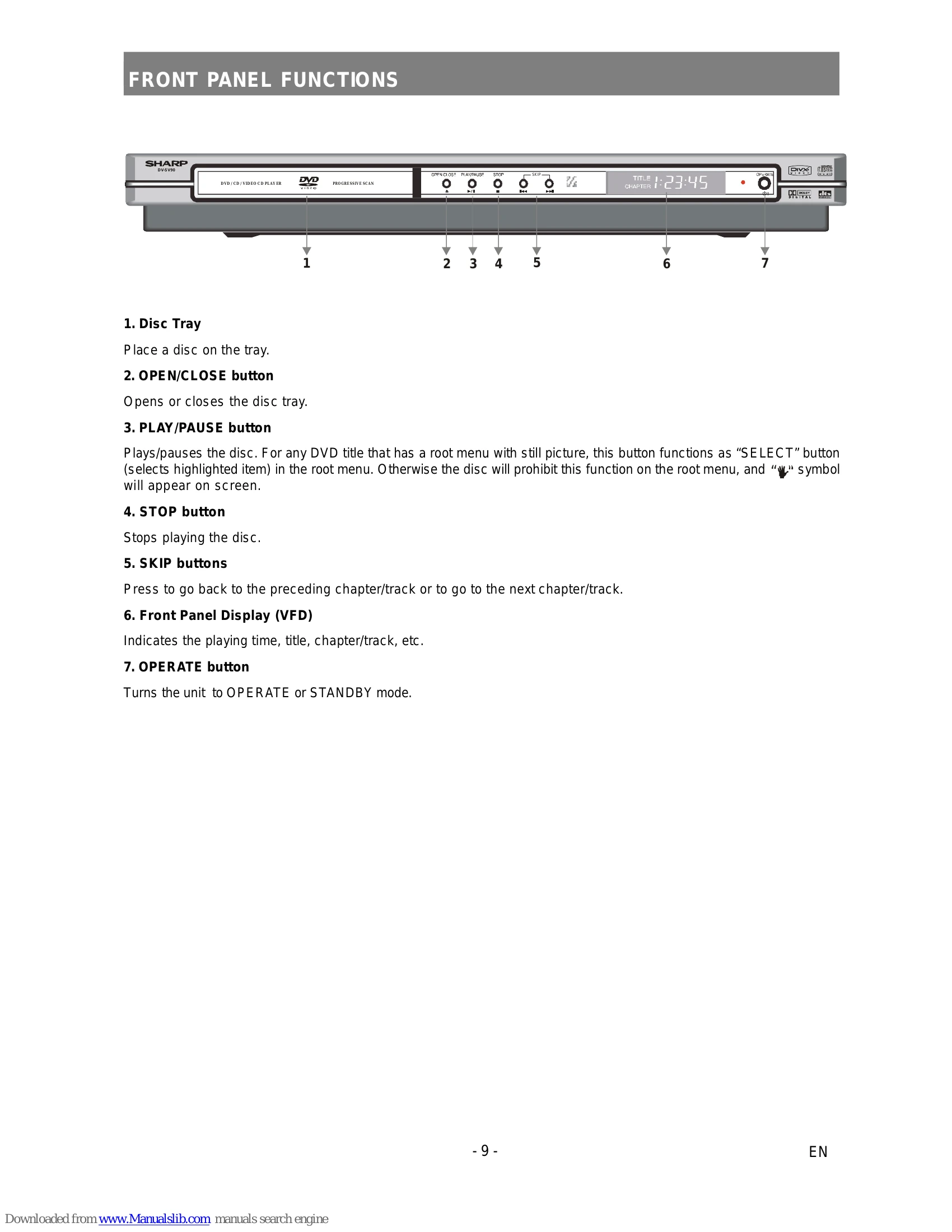
Basic Playback: Place a disc on the tray, press OPERATE, then OPEN/CLOSE to open/close the tray. For disc content with menus, use UP/DOWN/NUMBER buttons and SELECT to choose titles. After operation, press OPERATE to turn off the unit. Fast Forward/Reverse: Press SLOW/SEARCH during playback. Speed changes with each press. Press PLAY/PAUSE or SELECT to resume normal play. Pause: Press PLAY/PAUSE during playback. Press again to resume. Skip Forward/Backward: Press SKIP/FRAME during playback to skip chapters. Direct Selection: Use SEARCH MODE to select scenes by chapter, title, or time. Repeat Play: Press REPEAT to cycle through chapter, title, or off. Use A-B for specific section repeat. Convenient Functions: Press DISPLAY or TIME to show playback information. Press ZOOM to enlarge the picture. Use SUBTITLE to change subtitle language. For MP3/JPEG/MPEG-4/DivX files, use SMARTNAVI for navigation and playback. Setup Menu: Press DISPLAY when not in playback mode to access settings like VIDEO SETUP, AUDIO SETUP, LANGUAGE SETUP, PARENTAL SETUP, and PREFERENCES.

Troubleshooting and error codes

Issue Possible Cause/Solution
The picture quality is poor (DVD)
  • Make sure the DVD disc surface is not damaged. (Scratch, fingerprint etc.)
  • Clean the DVD disc and try again.
  • Ensure that the DVD disc is in the drawer with the label uppermost.
  • A damp DVD disc or condensation may affect the equipment. Wait for 1 to 2 hours in Stand-by to dry the equipment.
Disc does not play
  • No disc in the machine. Place a disc onto the tray.
  • Disc incorrectly loaded. Ensure that the DVD disc is in the drawer with the label uppermost.
  • Wrong type of disc. The machine cannot play CD-ROMS etc. Use disc in supported formats described on page 6.
  • The region code of the DVD must match the one of the player.
Wrong OSD language Select the language in the set-up menu.
The language for the sound or subtitles on a DVD cannot be changed.
  • Multilingual sound and/or subtitles not recorded on the DVD.
  • Try to change the sound or subtitles using DVD's title menu. Some DVD's do not allow the user to change these settings without using the disc's menu.
Some functions (Angle, Zoom etc) do not work
  • These functions are not available on the DVD.
  • Angle can only be changed when the angle symbol is displayed.
No picture
  • Check that the player is connected to TV properly and that all connections between the DVD player and other attached equipment are secure.
  • Have you pressed the correct buttons on the remote control? Try once more.
No sound
  • Check the volume is set to an audible level.
  • Make sure you have not switched the sound off accidentally.
Distorted sound Check that the appropriate listening mode setting is correct.
No response from remote control
  • Check batteries are fitted correctly.
  • Change the batteries.
Privacy Policy