Brand: SHARP
Category: Mobile Phone
Document Type: Manual
Language: EN
Brand: SHARP
Category: Mobile Phone
Document Type: Manual
Language: EN
Uploaded: Nov. 21, 2025, 9:15 p.m.
Manual Publish Date: 2021-03-01
Package Contents: Includes Handset (AQUOS sense5G), Battery (built-in), Quick Switch Adapter, and quick start guide.
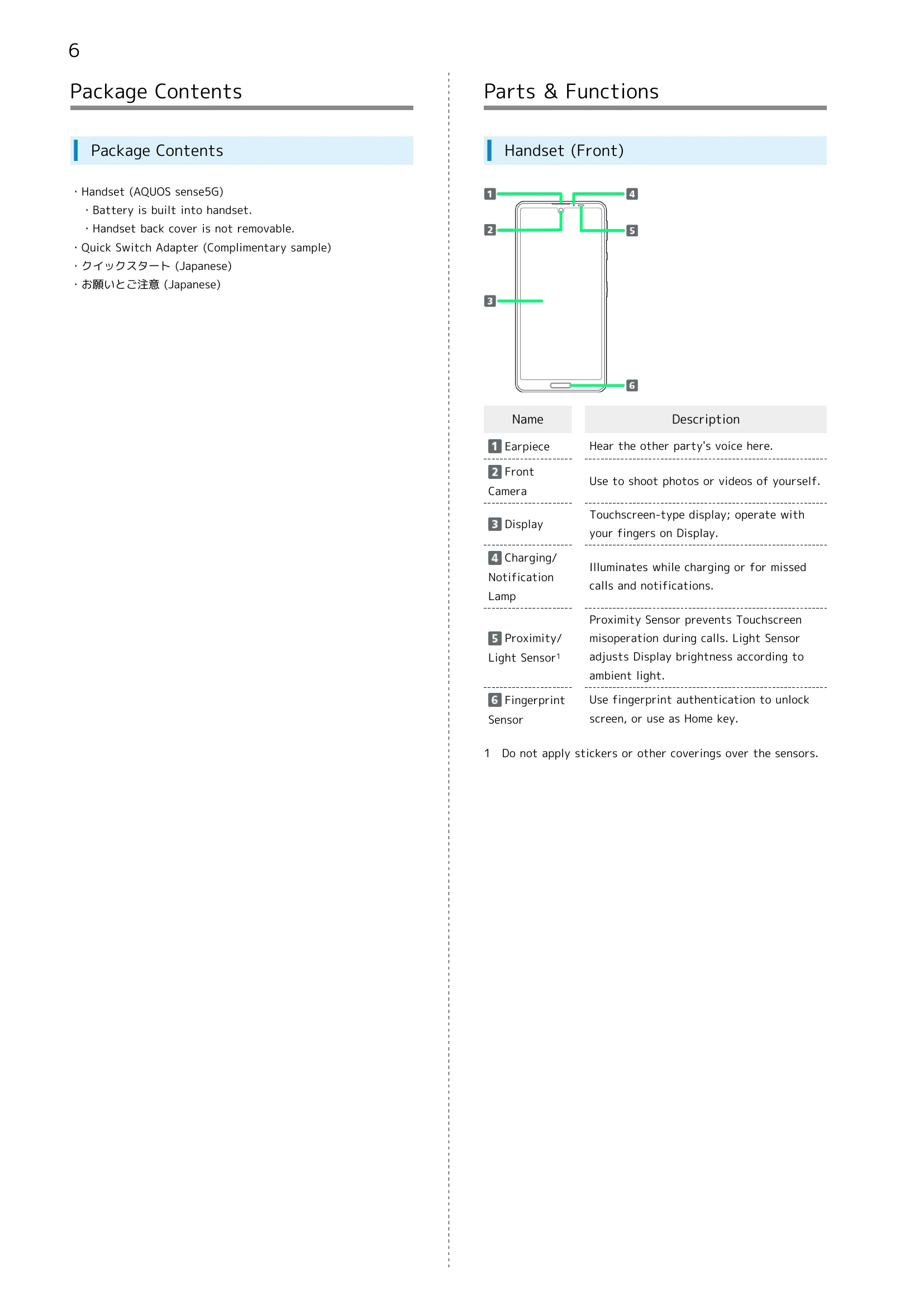
Parts & Functions: Identifies Earpiece, Front Camera, Display, Charging/Notification Lamp, Proximity/Light Sensor, Fingerprint Sensor, Mic, Cameras (Wide-Angle, Telephoto, Standard), FeliCa mark, Mobile Light, Speaker, Earphones-Microphone Jack, Card Tray, External Connection Jack, and Mic/Recorder Mic.
Handset Keys: Explains Volume Up/Down Keys, Assistant Key, and Power Key functions.
Charging: Details charging with AC Adaptor, indications while charging (lamp colors), and lock screen status.
Power On/Off: Instructions for powering the device on and off.
Initial Settings: Guides through selecting language, setting up Wi-Fi, Google Account, and other initial configurations.
Unlocking Screen: Describes how to unlock the screen after it has been locked.
Touchscreen: How to interact with the display.
Manner Mode: Setting silent or vibrate modes.
Airplane Mode: Disabling wireless communications.
Text Entry: How to input text.
Fingerprint Authentication: Setting up and using fingerprint unlock.
System Updates: How to update the device's software.
ROBOQUL: Information on using this feature.
Handset Screens: Overview of different screen layouts.
Icons: Explanation of icons in the status bar.
Notifications: How to check and manage notifications.
Screenshots: How to capture screenshots.
ScrollAuto: Feature for automatic screen scrolling.
Gaming Menu: Accessing the gaming menu.
Placing/Answering Calls: How to make and receive calls.
Optional Services: Information on additional phone services.
Handset Phone Number: How to find your phone number.
Making Phone Settings: Customizing phone call settings.
Address Book: Managing contacts.
+メッセージ (+Message): Using the messaging app.
Gmail: Using the Gmail application.
Using the Internet (Chrome): Browsing the web.
Capturing Photos/Videos: How to use the camera.
Listening to Music (YT Music): Playing music.
Viewing & Managing Photos/Videos: Using the Photos app.
| Issue | Resolution |
|---|---|
| Handset Powers Off | Check if battery is charged. If not, charge the handset. If the issue persists, contact customer service. |
| Handset Does Not Power On | Ensure the battery is charged. If it still does not power on, contact customer service. |
| Cannot Charge / Charging Stops / Charging Is Slow | Check the AC adaptor and USB cable for damage. Ensure they are properly connected. Try a different power outlet. If the issue persists, contact customer service. |
| Battery Runs Out Quickly | Adjust screen brightness, disable unused features (Bluetooth, Wi-Fi, GPS), and close background apps. Check battery usage in settings. |
| Display Turns Off Suddenly | Check screen timeout settings. Ensure the device is not overheating. Restart the device. |
| Screen Freezes / Operation Is Unstable | Restart the handset. If the issue continues, perform a factory reset (back up data first). |
| SIM Card Not Recognized | Remove and reinsert the SIM card. Ensure it is correctly inserted. Try the SIM card in another phone. Contact your carrier. |
| Cannot Use SD Card | Remove and reinsert the SD card. Ensure it is compatible and formatted correctly. Try another SD card. |
| Cannot Send/Receive Mail | Check internet connection (Wi-Fi or mobile data). Verify email account settings. Restart the device. |
| Cannot Connect to Internet | Check Wi-Fi or mobile data connection. Restart the device. Reset network settings. |
| Cannot Talk on Phone / Cannot Hear Other Party | Check signal strength. Ensure speaker or earpiece is not obstructed. Restart the device. Test with a different caller. |
| Cannot Use Applications | Check for app updates. Clear app cache and data. Reinstall the app. Ensure sufficient storage space. |