Manual for SH-WS10

Manual for SH-WS10

Brand: SHARP

Category: Mobile Phone

Document Type: Manual

Language: EN
Uploaded: Nov. 21, 2025, 8:37 p.m.

Warranty Information

Please refer to the "Quick Start Guide / Warranty Card" for warranty details.

Chapter 1: Getting Started

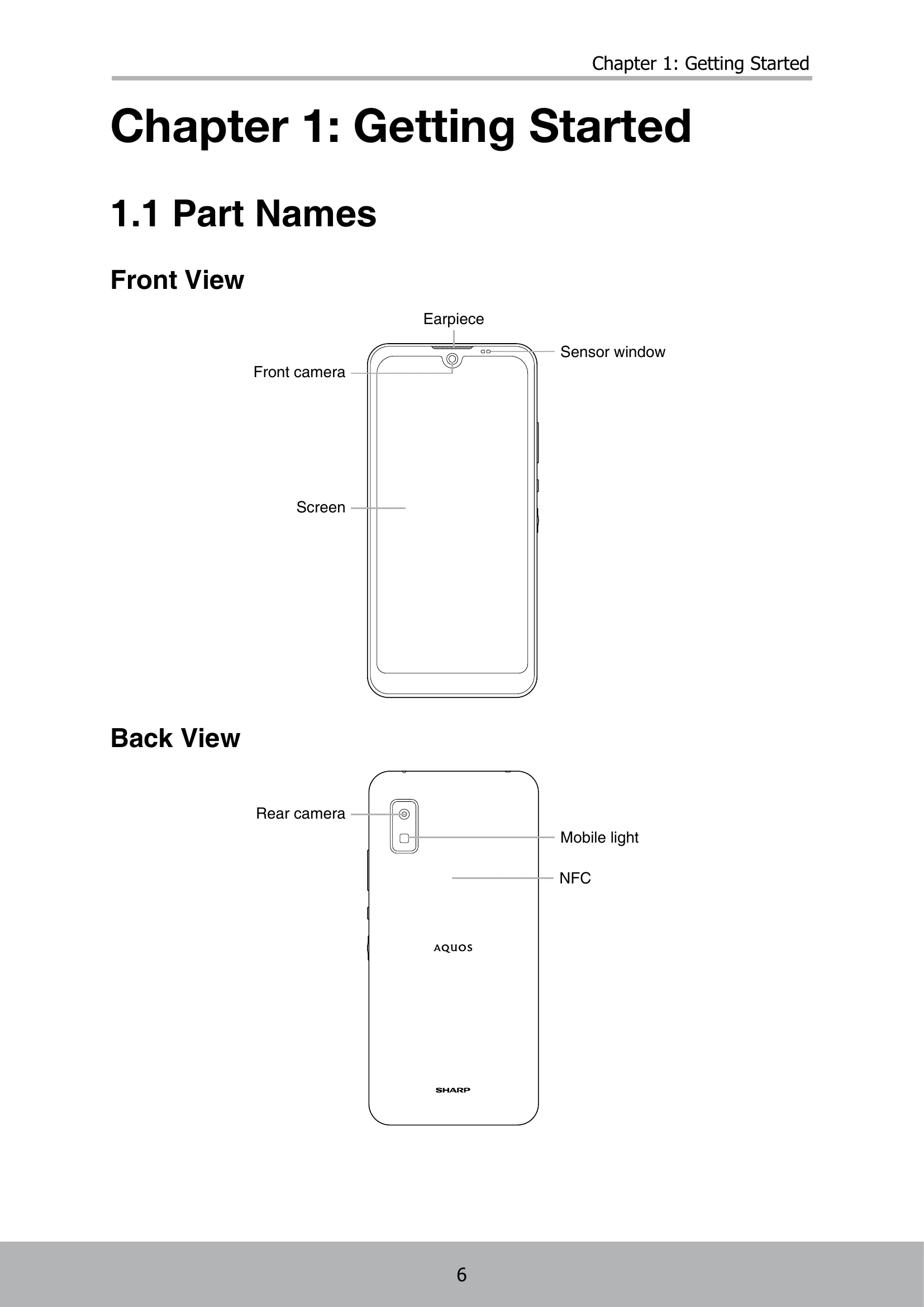
  • Part Names: Familiarize yourself with the front, back, side, top, and bottom views of your device, identifying key components like the screen, cameras, buttons, and ports.
  • Accessories: Check for included items such as the smartphone, quick switch adapter, and quick start guide/warranty card.
  • SIM Card and Memory Card: Learn how to remove, install, and replace the nanoSIM/microSD tray.
  • Charging the Battery: Connect the USB cable and charger to begin charging. The battery icon indicates charging status.
  • Turning Device On/Off: Press and hold the Power key to turn the device on or off. A power menu allows for power off, restart, or emergency calls.
  • Locking/Unlocking Screen: Press the Power key to lock the screen. Swipe up from the bottom to unlock. Quick access to the Camera and Google Assistant is available.
  • Using Headset: Plug a headset into the audio jack for hands-free use. Be mindful of reduced awareness of external sounds.
  • Adjusting Volume: Use the Volume Up/Down keys or press once and drag the slider. A quick menu allows for further volume adjustments.

Chapter 2: The Basics

  • Home Screen: Access apps, features, and notifications. Swipe up for more apps or recent apps. Long-tap to manage settings, add widgets, and set wallpapers.
  • Status Bar: Displays notification icons, battery status, and other system details.
  • Notifications Panel: Swipe down from the top to view alerts and shortcuts. Tap to open, swipe to remove, or manage notifications.
  • Open Apps: Tap app shortcuts on the Home screen or swipe up to access the Apps screen.
  • View Running Apps: Swipe up from the bottom to see recent apps, close them, or take screenshots.
  • Home Screen Management: Customize settings, add widgets, and set wallpapers.
  • Folders: Group similar apps into folders for better organization.
  • Launch Google Assistant: Swipe right from the left edge of the Home screen.
  • Changing Device Settings: Access the Settings menu from the Home screen or quick settings panel to adjust various device options.

Chapter 3: Contacts

  • Adding Contacts: Access the Contacts app, tap to add a new contact, enter information, and save.
  • Copying Contacts: Import or export contacts from/to VCF files or SIM cards.

Chapter 10: Managing Your Device

  • Time Zone: Automatically or manually set the time zone.
  • Time Format: Choose between locale default or 24-hour format.
  • Display Settings: Adjust screen timeout and brightness. Control screen rotation.
  • Wireless & Networks: Manage Wi-Fi, mobile data, airplane mode, Bluetooth, and hotspots.
  • Protect Your Phone: Set up screen lock (PIN, pattern, password, fingerprint) and SIM card lock.
  • Manage Mobile Data Limit: Set data usage limits and reminders.
  • Reset the Device: Reset network settings, app preferences, or perform a factory reset.

Chapter 11: Specifications

  • Display, Platform, RAM/ROM, Camera, Battery, Mobile Network, WiFi, Bluetooth, GPS, Security, Sensors, Interfaces, Fast Charging, Housing: Detailed technical specifications of the device.
  • Important Information: Safety precautions, handling instructions, and warnings for device usage.
  • Compliance Information: Regulatory and compliance details.
Privacy Policy