Brand: SHARP
Category: Office Equipment
Document Type: Manual
Language: EN
Brand: SHARP
Category: Office Equipment
Document Type: Manual
Language: EN
Uploaded: Nov. 21, 2025, 7:11 p.m.
Manual Publish Date: 2015-04-20
None
| Model | Symptom | Advice |
|---|---|---|
| MX-4111N or MX-5111N with another MX colour device? | Tandem operation is only supported with MX-2610/3110/3610N and MX-4111/5111N series only. | |
| ALL | What is the recommended resolution/dimensions when using custom images for the HOME Screen and Button Icons? | The maximum image size which can be uploaded to the Home Screen is 1024 x 544. Depending on the number of icons displayed on the HOME screen, please use the following:- Pattern 1: Icon Qty 4: Size 160 x 160 Pattern 2: Icon Qty 8: Size 160 x 160 Pattern 3: Icon Qty 8: Size 100 x 100 Pattern 4: Icon Qty 12: Size 100 x 100 Pattern 5: Icon Qty 12: Size 86 x 86 Pattern 6: Icon Qty 18: Size 86 x 86 |
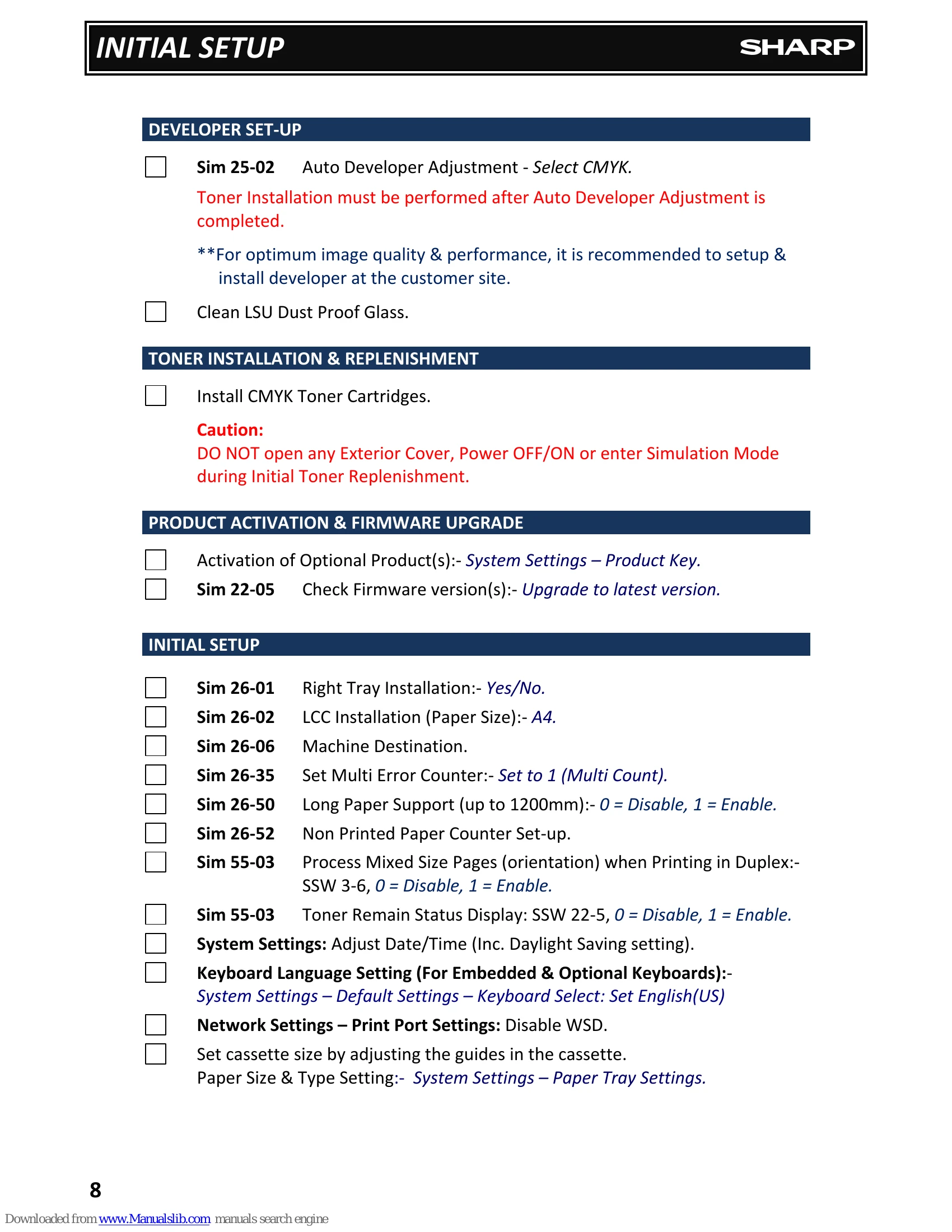
| ALL | Is it possible to print onto Banner Paper up to 1200mm in length? | The MX4111/5111N series can support printing up to 1200mm in length from the bypass tray only however, a special PCL6 print driver and setting change (Sim26-50, Item F) is required. |
| ALL | How do you print User Account information when User Control is enabled? | Select Settings - User Control - Default Settings. Scroll down and select the required option from User Information Print menu. Note: The Administrators password will be required. |
| HOME SCREEN ALL | The FAX icon is not displayed correctly on the Home Screen, even after adding the FAX icon via system settings once the fax expansion kit is installed. | After installing the MXFX11 Fax Expansion Kit, execute Sim 66-10 to perform a memory clear. The FAX icon will then be displayed correctly, once it's added to the HOME Screen via System Settings (Operation Settings - Home Screen). |
| WEB BROWSER KIT MX-AM10 | Is there a trial mode available for the Web Browsing Kit? | Yes: Use Sim 26-71 to enable (Restricted to 32000 pages). Note: PDF viewer & Flash is not supported using Trial mode. |
| MX-AM10 | Unable to print PDF documents when using the web browser function (MX-AM10) | To print PDF documents via the web browser, the PS option (MX-PK11) must be installed. |
| DOCUMENT FILING / PUBLIC FOLDER ALL | Unable to browse the NAS/Public Folder, even though the Public Folder/NAS settings are enabled within the Network Settings menu. | The NBT/WINS Port (Security setting) must be enabled to use NAS/Public storage. For security measures, this port setting is disabled as default. |
| ALL | Can you use Domain User Accounts to browse the NAS/Public Folders? | NAS/Public Folders support local accounts only (programmed on MFP) |
| GENERAL / MISC ALL | Slow operation and/or machine performance (including slow browsing experience of the MFP webpage). | Backup and clear the job log data (especially when the job log exceeds 60,000 entries). Also execute Job Log & HDD optimisation where available |
| ALL | SRDM does not show status of copier | SRDM (Sharp Remote Device Manager )gets data from the copier using SNMP . If this is disabled by using SIM 55-3 Sw. 9, bit 5, then SRDM cannot monitor the status of the copier . |
| ALL | What is the function of the Digital Line Network checkbox? | Please note that the copier needs to be power cycled at the mains for changes to the soft switch to take effect. In past examples, when connecting the FAX machine to an IP telephone network, if the outgoing signal level was high, communication trouble frequently occurred. Because of the above, there were many cases where technicians had to adjust the outgoing signal level via FAX Soft SW when this occurred. For this reason, the above setting has been added to avoid communication trouble when connected to an IP telephone network. This setting can be changed within the MFP web page by the administrator. System Settings -> Image Send Settings -> Fax Settings -> Default Settings. When Digital Line Network is enabled (ticked), the signal outgoing level of FAX is set to -15dBm |
| ALL | When using the LCD panel to change System Settings, only Top Page and System Settings are listed within the menu. | Go to the service webpage http://IP_Address_of_MFP/service_login.html. Default Username & Password= "service". Select "Administration Settings" and execute "All" to display all the settings. |
| ALL | Machine unable to wake up from Sleep Mode | Check/change the following soft switch setting:- Sim 66-1 (Fax switch) SW92, Set bit 7 = 1. |
| ALL | Please see administrator for assistance (code pc) message on the display, only after replacing the SCU PWB from spare parts. | Check and ensure CN16 jumper is transferred from the original to new SCU PWB. |
| ALL | UI becomes unresponsive when selecting any icon from the HOME screen (machine appears to hang) | Press and hold down the HOME key for approx. 5-10 seconds. If the counter window appears after a period of time, the touch key operating setting maybe changed. Via the MFP webpage, restore system settings or check the following settings:- Time for Accepting Key Entry: 0.0sec Time for Accepting Key Entry of Long Touch: 0.5sec Double Tap Interval Setting: 0.5sec Change Sim 55-03, SW No.6 DATA No.8 from 0 to 1 |
| ALL | USB Card reader not recognised | |
| ALL | Card Reader communication trouble. This indication is displayed if a Card Reader is not detected correctly when a Card Reader is registered on the MFP. | Enter User Control – Card Type/ Card Reader Settings menu and uncheck Use IC Card for Authentication And/or de-register the Card Reader from Card Reader Device Registration menu via the operation panel. |
| MX-EB12 | HDD Trouble: Use SIM62-20 to check the HDD status. For troubleshooting, refer to the MX-EB12 Mirroring Kit section within this guide. | |
| ALL | TROUBLE CODES C4-20 | Check if the Black drum cleaning blade has flipped. Also check the condition of the primary transfer belt unit. |
| ALL | E6-11 trouble after replacing the DSPF Control PWB or DSPF CCD Unit. | DSPF Shading Adjustment (SIM63-2) must be executed after replacing the DSPF CCD Unit, DSPF Control PWB or following U2 trouble. Use DSPF Shading Adjustment Sheet [UKOG-0333FCZZ], |
| MX-FX11 | E7-07 error when sending or receiving large volume of fax jobs | Upgrade the firmware to 04.00.R1 (or higher). |
| ALL | Intermittent E7-20 | |
| ALL | E7-48 | To support MX4111/5111N series and prevent E7-48 trouble, the MXEB11 firmware must be upgraded to 02.00.A1 (or higher). |
| ALL | E7-95 | Check PCL Flash ROM, replace if required. Also ensure to upgrade the Firmware to current version |
| MX-FNX9 | F1-00 trouble after a firmware upgrade | When performing a firmware upgrade on the Inner Finisher, ensure to select both BOOT & MAIN firmware after executing Sim 49-01. Due to a recent change, both BOOT & MAIN firmware versions have been upgraded however, if only the MAIN firmware is selected and upgraded, F1-00 trouble may be experienced when using the combination of original BOOT and current MAIN firmware versions. |
| MX-FN10 | F1-08 | Upgrade the MXFN10 Firmware to v01.10.02 (or higher) for improved Gripper control |
| ALL | U5-16 trouble (DSPF cooling fan permanently runs) | Ensure "Super Lube" Synthetic Multi-Purpose Grease (SUP21030) is applied to the square shaft within the staple unit otherwise, the gripper drive gear (PG: Section 24 item 11 - 0CW4158P418//) may wear prematurely, causing it to bind under load. |
| ALL | Constant Error 1206 when adding an address destination - even after resetting system settings back to factory default. | Replace the DSPF Driver PWB (CPWBN1982FCE1). Check the HDD operation for bad or corrupted partition. Execute Sim 62-01 and format the HDD. If the problem persists after formatting, replace the HDD unit. |
| ALL | POD1_S jams in fuser | If a paper jam is incorrectly removed , the Fusing rear lower paper guide sheet (PSHEP6378FCZZ) may be bent over , causing POD1_S jams. Straighten guide sheet, then test. Replace if damaged. |
| MX-FN18 | Fold alignment drifts after producing 3 or 4 booklets, only when using A3W paper size with the MXFN18 saddle finisher. | Upgrade the MXFN18 Saddle Firmware to 01.02.03.a0 (or higher) |
| MX-FNX9 | Remove paper from offset tray message after each set is complete | Check the operation of FSLD1 & FSLD2. Both sensors should be OFF when the paper surface detect lever (PG Section 12, item 6) is at Home position therefore, if FSLD2 remains ON (using SIM 3-2), check if the sensor is located (fixed) correctly onto the frame. |
| OSA Network Scanner Tool ALL | File name cannot be customised when using Sharp OSA-Network Scanner Tool v1.1 | Download an updated web module from the Sharp support website and copy it into the Sharp OSA-Network Scanner Tool Host Installation Folder:- eg. C:\Program Files\Sharp\Sharp OSA Network Scanner Tool Host\OSANSTWeb\bin Afterwards, reboot the Host Server/PC. |
| ALL | Under External Account control (OSA), is it possible to lower the Automatic Log Out (User) timer from 60 seconds? | Under User Control - Default Settings menu, enable Automatic Logout Setting and change to the required time (eg. 30 seconds). |
| ALL | Unable to enter the URLs for EAM (External Accounting Mode) as the item is missing from the webpage, even though MXAMX3 is enabled. | Check the setting for Sim 26-03 (Coin Vendor Mode). Ensure OUTSIDE AUDITOR is configured to None. |
| ALL | Is it possible to activate a trial mode for Sharp OSA? | Sharp OSA trial mode supporting most functions can be enabled by executing Sim 26-74 (restricted to approx 32000 pages, including print/scan/copy/image send). |
| SHARPDESK MOBILE ALL | Which additional options are required for full functionality when using Sharpdesk Mobile via a wireless access point? | Only MX-PK11 is required. |
| ALL | Unable to connect to Office 365 email account when using Sharpdesk Mobile v2.0 | When using Office 365, you need to specify the following information within Email Server Settings on Sharpdesk Mobile:- Hostname: m.outlook.com Port Number: 993 SSL: ON |
| SHARPDESK MOBILE (Cont'd) ALL | SharpDesk Mobile is not displayed within the Windows Store Search Results. | The SharpDesk Mobile application is not displayed when searched from the Windows Store if your mobile device's language setting is set to one of the languages that Sharpdesk mobile does not support. Change your language to English (US) or English (Australia) and then re-search. |
| IMAGE SEND ALL | How to scan to Office 365 email from Sharp MFP? | Check the following settings under Network Settings Service Settings -> SMTP Primary Server: smtp.office365.com Port Number: 587 Reply Email Address: ****@onmicrosoft.com SSL: ON SMTP Authentication: ON User Name should be same as the Reply Email Address. Note: IMAP is not supported on the current Sharp MFPs therefore only SMTP protocol can be used. The correct port for SMTP with SSL enabled is 587 for Office 365 email. |
| ALL | Scan to Email fails when using hotmail.com or outlook.com | As Microsoft will not accept any email that is not RFC5322 compliant, the sending email must have a name and valid email address in the header therefore, when configuring SMTP settings on the MFP, make sure to add a Name & Email Address in the Default Send Set menu (under System Settings\Image Send Settings\Scan Settings). |
| MXFX11 | Fax dial tone gives busy tone. | On some PABX, the line voltage may be low enough for the machine to think that an external handset is off hook, stopping faxes from being sent. Usually this manifests itself as the machine always having a congestion tone when the speaker button is pressed. To disable Handset detection, change soft switch 114, bit 8 |
| ALL | After entering multiple destinations (eg. Email, Fax & Network Folder) for a single contact and Scan to Email is executed, the MFP broadcasts the scanned data to all destination addresses (Email, Fax & Network Folder) for the selected contact. | The behaviour of the Address Book has been changed from July 2011 to only display and select the corresponding destination for the chosen Image Send Function. For earlier devices, upgrade the MFP firmware to v03.00.R1 (or higher) |
| ALL | What is the PDF/A file format specification when using Image Send? | PDF/A-1a is supported. |
| USB WIRELESS ADAPTOR MX-EB13 | Unable to setup or configure WiFi. Wireless settings are not available under Network Settings Menu. | To support the MX-EB13, install special ROM version 27.00.R1. After rebooting the MFP, enter SIM26-50 and enable WIRELESS SET (to ON). |
| PRINT CONTROLLER ALL | The MFP may intermittently hang (stops printing) with Rendering displayed within the job status, only when printing from a Windows environment. | Upgrade the MFP firmware to 08.20.R1 (or higher). Also, there is a Microsoft Hotfix available that may address this issue:- http://support.microsoft.com/kb/2996207/en-us In addition, disabling mDNS within Network Settings- Services menu and WSD under Network Settings-Print Port Settings has also resolved this issue in some cases. |
| ALL | After upgrading from Windows 8 to 8.1 or 2012 to 2012R2, “Features" information on the printer properties is not displayed. | This is caused by the OS upgrade. If you change the Printer Name or change/reset the Port properties of the queue, the Features information will return. |
| ALL | Using PC-Fax Preview function on Windows 8.1 or 2012R2, the preview image and sending result is incorrect | When using PC-Fax driver on Windows 8.1 or 2012R2, set the FAX resolution setting to 200x200dpi, 400x400dpi or 600x600dpi. |
| MX-PK11 | Unable to install OSX10.8 Drivers - Cannot be opened because it was not downloaded from the Mac APP Store error message | For additional security, OSX 10.8 Mountain Lion implemented “Gatekeeper”, which can be set to restrict the installation of applications/drivers from a specific source (eg Mac App Store). From the Security & Privacy menu (System Preferences), change the "Allow Applications Downloaded From" setting to Mac App Store and identified developers or Anywhere. |
| ALL | When printing within a Windows environment, a delay is experienced when selecting and connecting to the required print queue from some Applications (eg. Word 2010). | Upgrade the PCL6 or PS print driver to the following version (or higher):- 05.00.07.23 |
| ALL | Printing multiple page reports from different paper trays as separate files, is it possible to stop the MFP device from bypassing jobs held when a paper out condition occurs, to prevent an out of sequence output/report? | Enable (check) the following setting change on the MFP device:- System Settings - Operation Settings - Disabling of Bypass Printing |
| DATA SECURITY KIT MX-FR33U | Unable to activate Data Security Kit. | Once the Data Security Kit has been installed (as described within the Installation Manual), the product activation key can only be entered via the MFP operation panel (and not via the MFP webpage). Enter Settings - System Settings - Product Key menu and input the unique activation key. Once registered, power cycle the MFP device by using the primary power switch (inside the front exterior cover). After the MFP reboots, use Sim 22-10 to confirm the DSK option is enabled. |
| MX-FR33U | After powering on the MFP device (installed with DSK), the machine takes approx 8 minutes to come to a ready condition. | Check and/or replace the 1GB memory installed on the MFP PWB. |
| MX-FR33U | When printing to a specific folder without PIN, Error 421 occurs - only when DSK is installed. | To print to a specific folder without PIN, perform the following setting changes:- 1. Settings - Security Settings - Other Settings - Disabling of Document Filing menu:- Un tick Sharing Mode for Printer. 2. User Control - Authority Group List - Add Authority group Registration - Job Setting - Security - Document Filing Approval Setting menu:- Enable Sharing Mode. |
| EMAIL STATUS ALERTS ALL | Is it possible to configure the MFP to send only a single email alert for each alert condition? | Upgrade the MFP firmware to February 2012 Running Change (06.00.R1 or higher) and configure the following soft switch:- SIM 55-03 SW28-3 (change from 0 to 1). Note: For dealer email address, multiple email notifications will still be received. |
| ALL | Configuring Toner Low Email alerts to be sent at a specific toner remaining level | If you wish to receive toner low emails at a specific toner remaining level, configure the MFP as follows:- 1. Enter Simulation 26-69. 2. Change Item F (Toner E-Mail Alert) from 1 to 0. 3. Set Item B (Remaining Toner Level) to the specified level when the Email alert is sent:- Examples: 0= 5%, 1=10%, 2=15%, 3=20%, 4 = 25% (Default), 5=30%. Note: Depending on Model, the details within Simulation 26-69 may differ therefore please refer to the Service Manual for the relevant model series. |