Brand: SilverCrest
Category: Electronics
Document Type: Manual
Language: EN
Brand: SilverCrest
Category: Electronics
Document Type: Manual
Language: EN
Uploaded: Nov. 21, 2025, 7:54 p.m.
The warranty for this appliance is 3 years from the date of purchase.
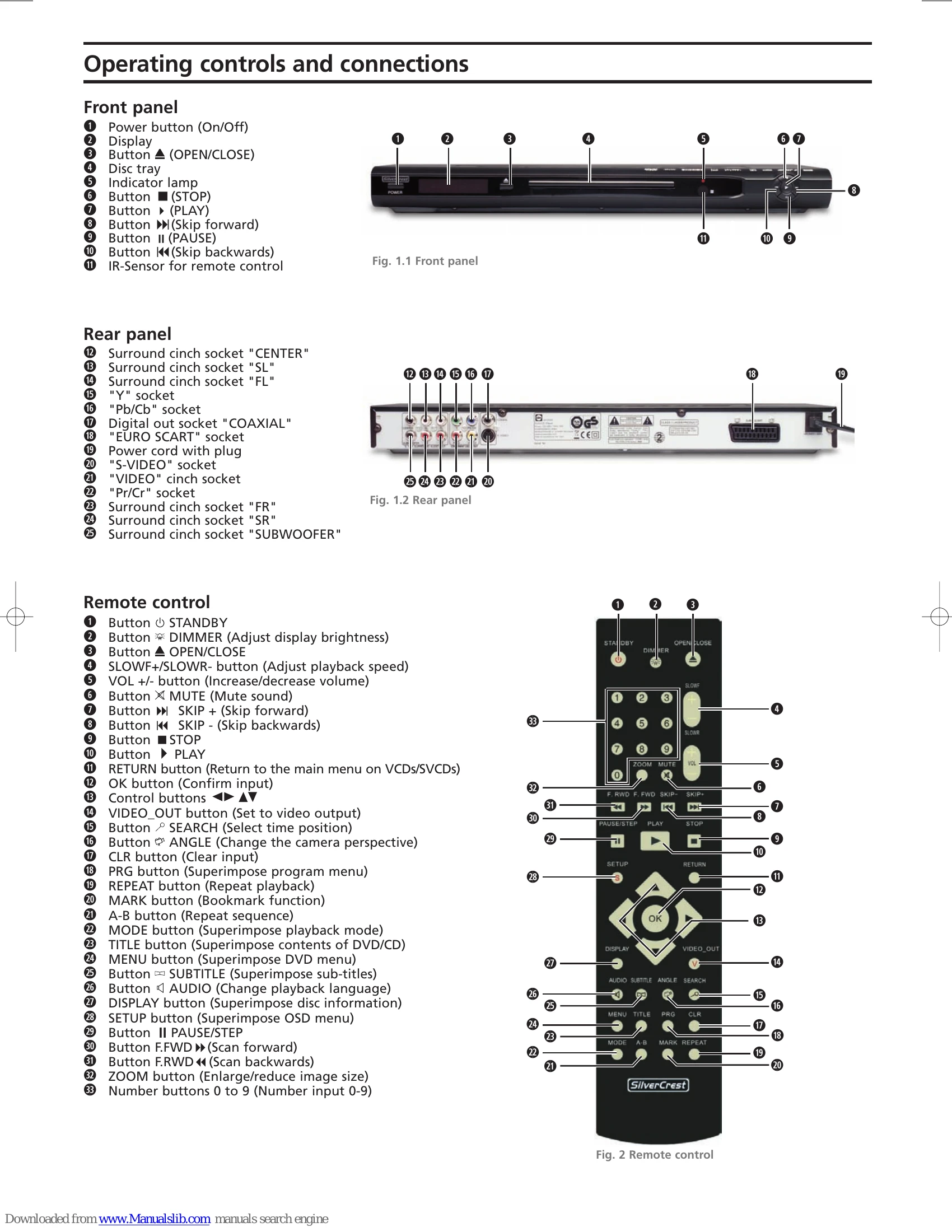
Powering On/Off: Press the POWER button on the front panel to switch the DVD player on or off. The STANDBY button on the remote control switches between standby mode (red LED) and operation.
Disc Playback: Open the disc tray using the OPEN/CLOSE button, insert a disc with the label side up, and then close the tray. Playback starts automatically or by pressing the PLAY button. Use PAUSE to temporarily stop playback, and STOP to cancel it. The Resume function allows continuing playback from where it was interrupted.
Navigation and Playback Controls: Use SKIP buttons to jump between chapters. The SEARCH function allows selecting a specific title, chapter, or time position. Fast Scan (F.FWD/F.RWD) and Slow Motion (SLOWF/SLOWR) offer different playback speeds. ZOOM allows enlarging image sections. ANGLE changes camera perspectives for compatible discs. SUBTITLE and AUDIO buttons adjust these settings when available.
Menu Settings: The OSD Menu, accessed via the SETUP button, allows configuring language, video (aspect ratio, TV system), audio (bass management, speaker settings), rating, and miscellaneous settings (reset to defaults).
| Issue | Possible Cause | Solution |
|---|---|---|
| Display is blank/DVD player shows no functions even though it is switched on | Power cord not plugged in correctly. | Check power cord connection. |
| No power at the socket. | Test socket with another appliance; try a different socket. | |
| Dimmer function is active. | Press DIMMER button on remote control. | |
| Player needs resetting. | Switch off player for 10 seconds, then switch back on. | |
| Display shows "No Disc" even though there is a disc inserted | Disc is dirty, scratched, or damaged. | Clean disc or insert another. |
| Country/Region code mismatch. | Ensure disc code matches player code. | |
| Inserted disc will not playback | Condensation on laser lens. | Place player in a dry environment, remove disc, and let it run for an hour. |
| No image or Black/White image only | Connection cables are loose. | Ensure all cables are firmly inserted. |
| Incorrect OSD menu settings. | Check OSD menu settings match connection type (see Chapter 6). | |
| Television settings may be incorrect. | Consult television manual. | |
| No sound | Mute is activated on TV or DVD player. | Check mute settings. |
| Audio connection cables are loose. | Ensure all audio cables are firmly plugged in. | |
| Incorrect OSD menu settings for audio. | Check OSD menu settings for audio connections (see Chapter 7). | |
| Television or audio component settings may be incorrect. | Consult relevant manuals. | |
| Incorrect speaker setting in OSD menu. | Check "Front LS" setting in OSD menu. | |
| No 4:3 or 16:9 image | Television does not support desired format. | Check television's supported image formats. |
| OSD menu settings do not match television format. | Adjust OSD menu settings to match television. | |
| Remote control not functioning | Batteries inserted incorrectly. | Check battery polarity. |
| Batteries are exhausted. | Replace batteries. | |
| Obstacles between remote and player. | Ensure clear line of sight. | |
| Distance too great. | Stay within 5 meters of the player. |