Manual for VCC-HD2300P/VCC-HD2100P

Manual for VCC-HD2300P/VCC-HD2100P

Brand: SONY

Category: Video Camera

Document Type: Manual

Language: EN
Uploaded: Nov. 21, 2025, 9:15 p.m.

From Connection to Network Operation

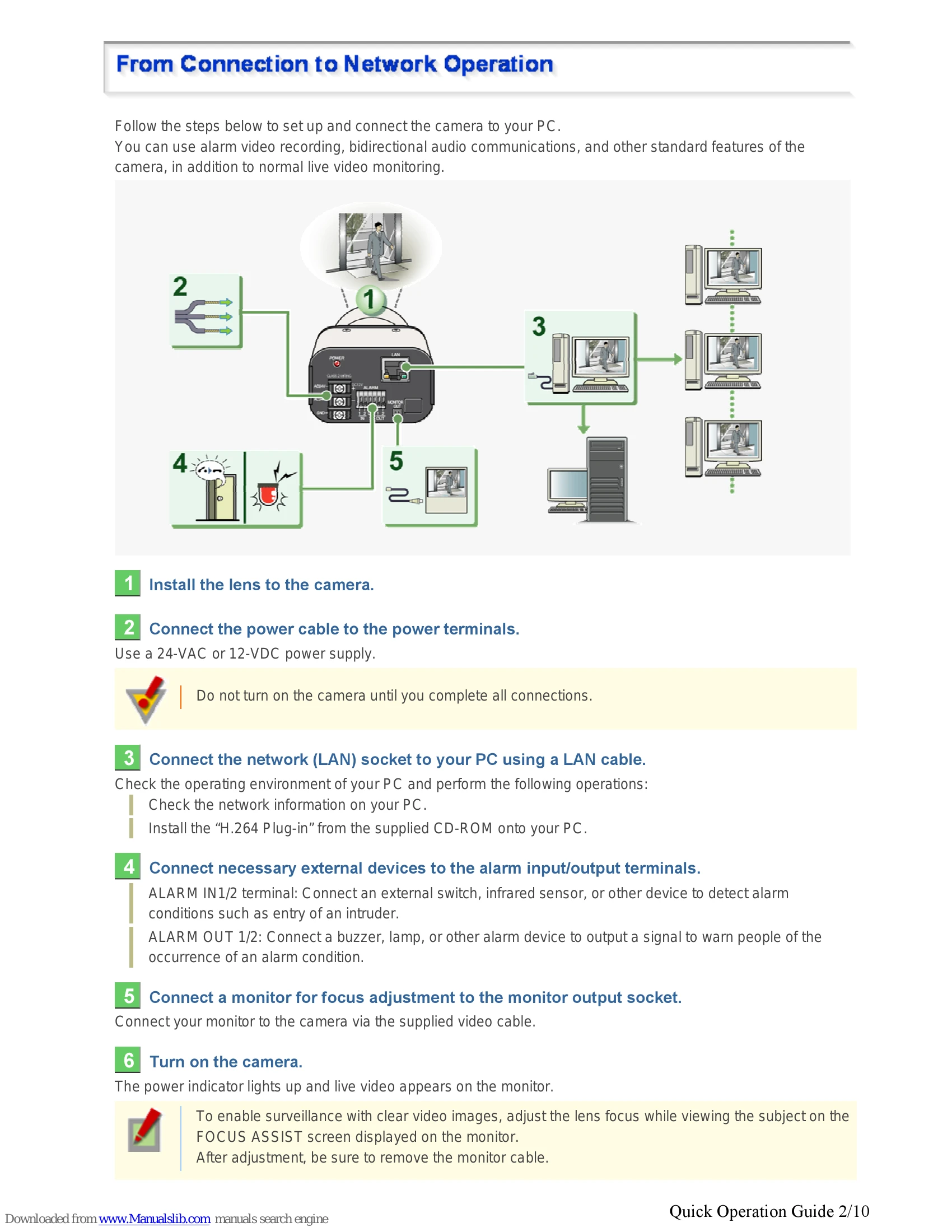
Follow the steps below to set up and connect the camera to your PC. You can use alarm video recording, bidirectional audio communications, and other standard features of the camera, in addition to normal live video monitoring.
  1. Install the lens to the camera.
  2. Connect the power cable to the power terminals. Use a 24-VAC or 12-VDC power supply.
  3. Connect the network (LAN) socket to your PC using a LAN cable. Install the "H.264 Plug-in" from the supplied CD-ROM onto your PC.
  4. Connect necessary external devices to the alarm input/output terminals.
  5. Connect a monitor for focus adjustment to the monitor output socket.
  6. Turn on the camera. The power indicator lights up and live video appears on the monitor. Adjust the lens focus while viewing the subject on the FOCUS ASSIST screen.
  7. Access the camera from your PC's Web browser. Live video appears on the live screen. Now, you can perform all network operations from your PC.

Live Video Monitoring

Check the factory default video/image conditions on the CODEC/STREAMING SETTINGS screen. Change the default settings as necessary.

Alarm Detection and Output

Check the factory default alarm detection conditions on the ALARM SETTINGS screen. Change the default settings as desired. You can configure the camera to detect alarm conditions via the "alarm input terminals" or "built-in motion sensor".

Troubleshooting and error codes

Issue Solution
I cannot display LIVE video.
  • ActiveX control is not installed in your PC. Install ActiveX.
  • There is network congestion. It may take some time until the screen can be displayed. Please wait.
  • The version of the installed ActiveX control is old. Install the H.264 Plug-In included in the supplied CD-ROM or the latest H.264 Plug-In.
  • The Web browser you are using for accessing the camera is configured to connect to the Internet via proxy server.
I cannot install the "H.264 Plug-In" included in the supplied CD-ROM.
  • The OS of your PC is not a recommended OS.
  • You are not logged into the PC with administrator privileges.
An error code appears and no LIVE video is displayed.
  • The configured IP address or domain name is wrong.
  • The network connection has timed out.
The screen has suddenly stopped refreshing. A camera power or network fault has occurred. Check the power supply status and/or the network environment.
The video image is distorted and cannot be displayed correctly.
  • The maximum bit rate for video streaming is configured with a value higher than the network bandwidth.
  • The performance of the PC is low.
The image quality is bad. The color quality for your PC monitor is configured to less than 16 bits.
Frame rate is low, or the moving image stops temporarily.
  • Among the multiple accesses to the camera, some are from narrowband networks.
  • There are multiple accesses or accesses with request for multiple resolutions.
The frame rate of video in maximum video size is slow. The performance of the PC is low.
The LIVE video image is not clear.
  • The camera focus has not been adjusted to the correct position.
  • The object is too close to the camera.
  • Dust, dirt, fingerprints, etc. are present on the lens cover.
The live video display is entirely discolored (A white subject appears to be colored.) Adjust the white balance.
The LIVE video image is noisy.
  • The background of the object is dark.
  • The color quality for your PC monitor is configured to less than 16 bits.
The image contains white spots or colored light spots. You are using the camera in a dark place. Or, you are recording a dark object.
The e-mail transmission function does not work.
  • Incorrect user ID/password information.
  • The server address is wrong. Or connection to the server is down.
  • The SMTP server requires authentification.
  • Transfer is blocked by the "Outbound Port 25 Blocking (OP25B)".
I cannot view the image data I received on my cell phone. Some cell phones have a limit on the size of image data they can handle.
Upgrade has been terminated.
  • Upgrade has been interrupted due to power off, network fault, or other problem during the process. Redo the upgrade.
The date and time is not adjusted automatically by the NTP server.
  • The GATEWAY settings are not configured correctly.
  • The NTP server address is not configured correctly.
  • Adjustment by NTP is not set as the method for automatic time adjustment.
The date and time information indicated on the live screen does not reflect the clock settings configured on the [CLOCK SETTINGS] screen. It is recommended that you delete temporary Internet files.
Privacy Policy