Brand: TP-LINK
Category: Networking
Document Type: Quick Start Guide
Language: EN
Brand: TP-LINK
Category: Networking
Document Type: Quick Start Guide
Language: EN
Uploaded: April 20, 2026, 7:55 p.m.
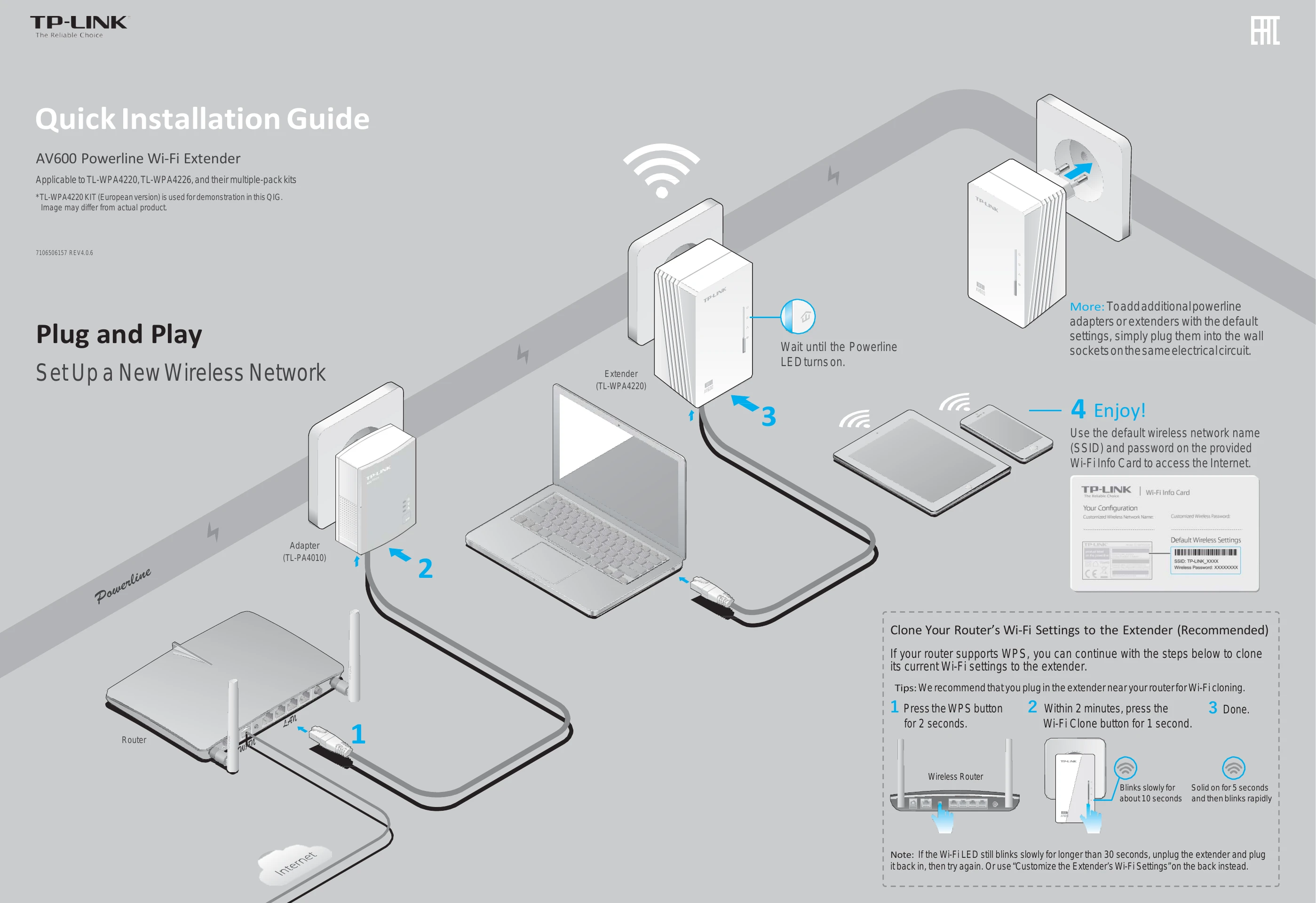
Set Up a New Wireless Network
Create or join a secure powerline network by pressing the Pair button on devices.
Connect your computer to the extender and use the TP-LINK utility to change Wi-Fi settings.
| LED | STATUS | DESCRIPTION |
|---|---|---|
| Power | On/Off | The device is on or off. |
| Blinking | Once every second: Pairing is in process. | |
| On | Once every 15 seconds: Power-Saving Mode is on. (Powerline adapter only) | |
| Powerline | On | The device is connected to the powerline network. |
| Off | The device is not connected to the powerline network or is in Power-Saving Mode. | |
| Ethernet | On/Off | The Ethernet port is connected or not connected. |
| Wi-Fi | Blinking Rapidly | The Wi-Fi is working properly. |
| Blinking Once every second | Wi-Fi cloning is in process. | |
| Off | The Wi-Fi is disabled. |
| BUTTON | DESCRIPTION |
|---|---|
| Wi-Fi/Wi-Fi Clone | Press and hold for 1 second to start Wi-Fi cloning. Press and hold for 5 seconds to turn the Wi-Fi on or off. |
| Pair | Press and hold for 1 second to start the pairing process. |
| Reset | Press and hold for 10 seconds to leave the powerline network. Press and hold for 5 seconds to restore the extender's settings to factory defaults. |