Brand: TP-LINK
Category: Networking
Document Type: Installation Guide
Language: EN
Brand: TP-LINK
Category: Networking
Document Type: Installation Guide
Language: EN
Uploaded: April 20, 2026, 7:31 p.m.
Refer to the User Guide for detailed warranty information.
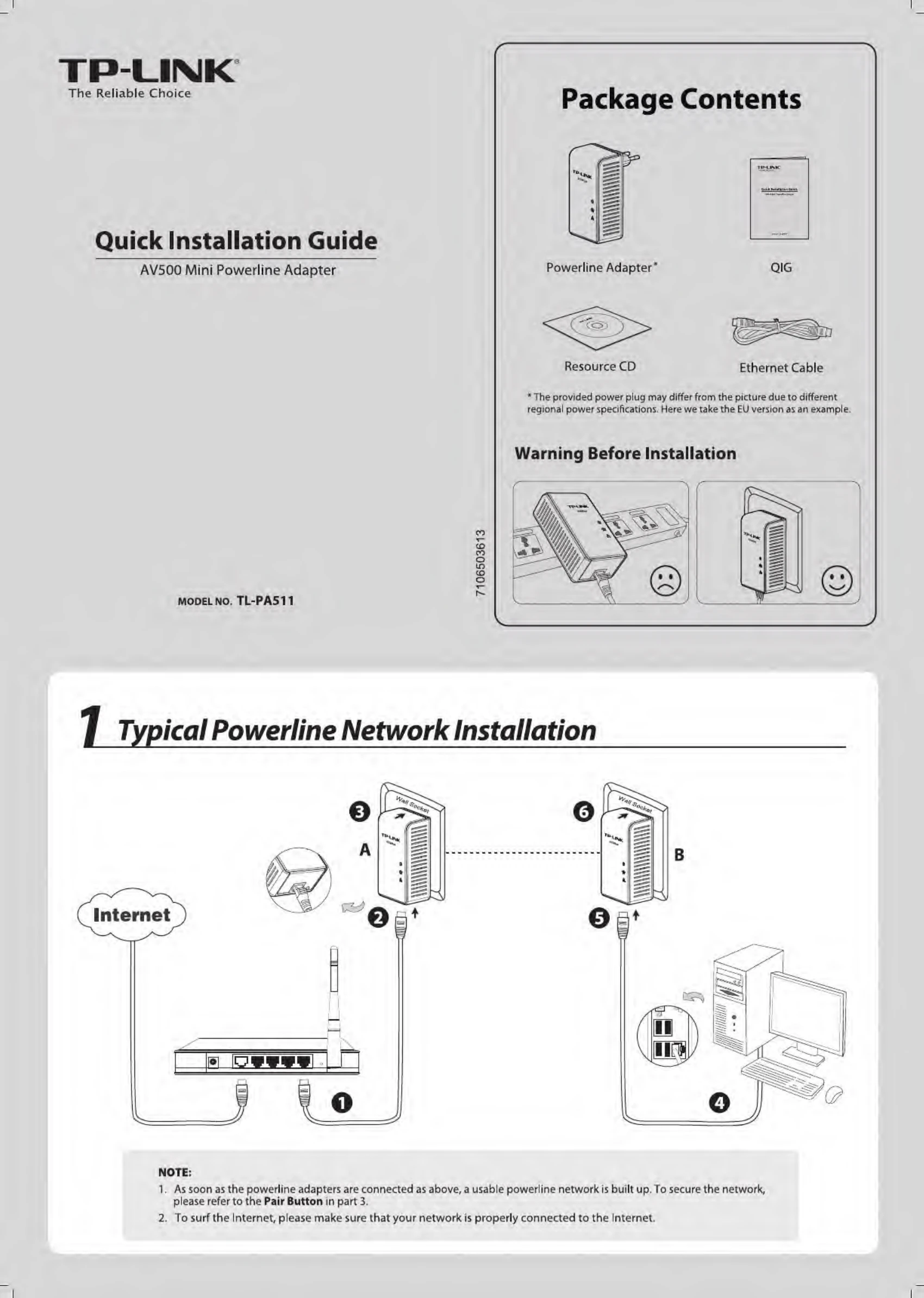
1. As soon as the powerline adapters are connected as above, a usable powerline network is built up. To secure the network, please refer to the Pair Button in part 3.
2. To surf the Internet, please make sure that your network is properly connected to the Internet.
This section explains how to extend your powerline network to other rooms using additional powerline adapters.
| Item | Status | Description |
|---|---|---|
| Power LED | Solid | The adapter is on. |
| Blinking | The adapter is in power-saving mode. | |
| Off | The adapter is off. | |
| Powerline LED | Green | Data rate is more than or equal to 80Mbps. |
| Orange | Data rate is between 48Mbps and 80Mbps. | |
| Red | Data rate is less than or equal to 48Mbps. | |
| Off | The adapter isn't connected to any powerline network or is in power-saving mode. | |
| Ethernet LED | Solid | The Ethernet port is connected, but there is no data being transferred. |
| Blinking | The Ethernet port is transferring data. | |
| Off | The Ethernet port isn't connected. | |
| Pair Button | Pair buttons are used to secure a powerline network. To secure your network, please follow the steps below. Firstly, plug in a new adapter, and press its pair button for one second; then plug in another adapter and press its pair button for one second as well. The two buttons should be pressed within 2 minutes of each other. After that, wait about 60 seconds so that the two adapters can finish connecting. * For advanced settings, please refer to the User Guide included in the Resource CD. | |