Brand: VersaPro
Category: Laptop
Document Type: Manual
Language: EN
Brand: VersaPro
Category: Laptop
Document Type: Manual
Language: EN
Uploaded: Nov. 21, 2025, 7:12 p.m.
Manual Publish Date: 2013-12-01
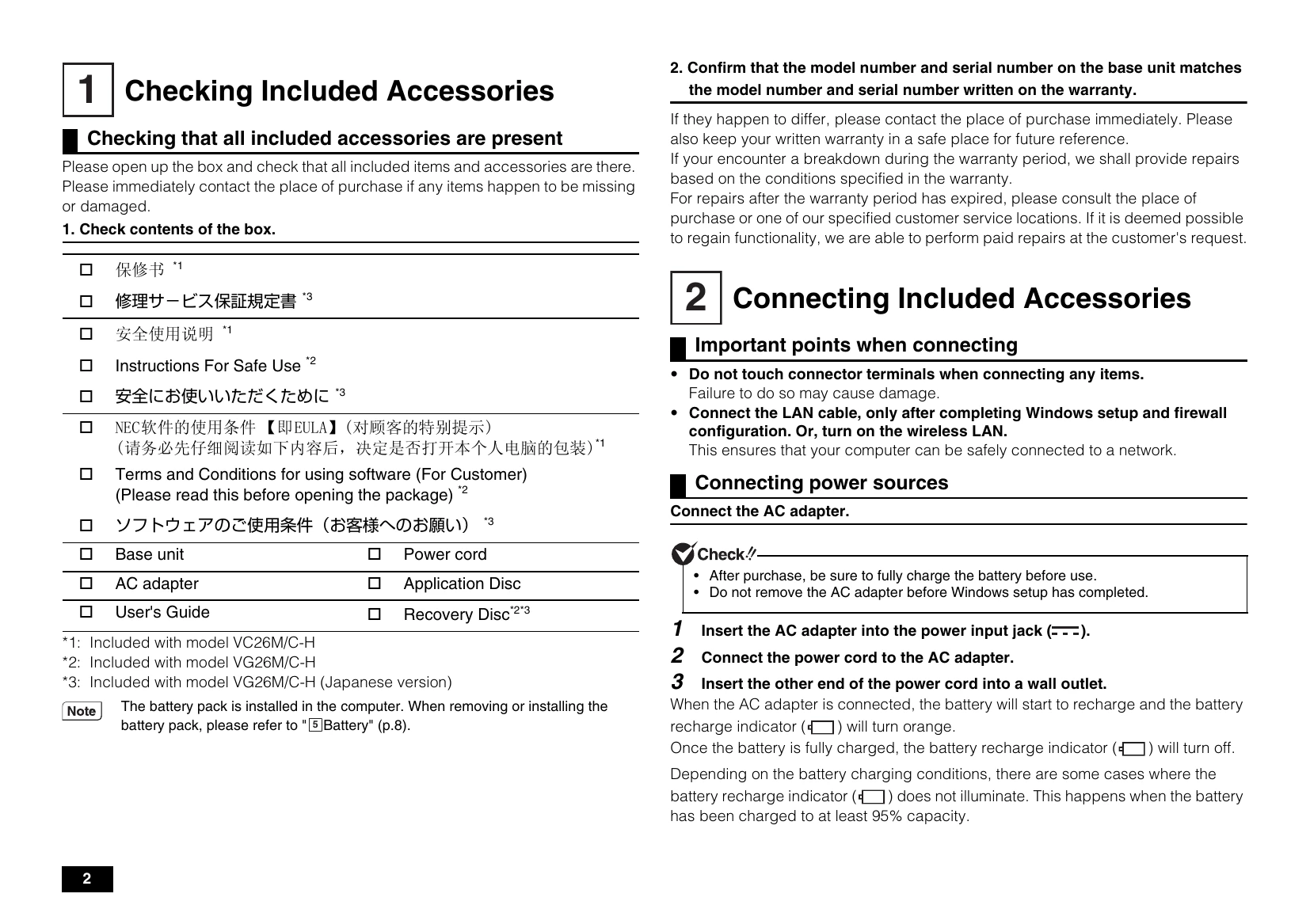
Manual provides warranty information, and for repairs, consult the place of purchase or customer service.
Checking Included Accessories: Open the box and verify all items are present. Contact the place of purchase if any are missing or damaged. Confirm model and serial numbers on the unit match the warranty document.
Connecting Included Accessories: Connect the AC adapter and power cord to charge the battery. Ensure Windows setup is complete before connecting LAN cable.
Windows Setup: Follow on-screen instructions to set up Windows 8.1. This includes setting region, language, user name, and PC name. Do not connect external peripherals or turn off power during setup.
Knowing the Parts: Familiarize yourself with the major components of the computer, including the LCD display, keyboard, ports, and indicator LEDs.
Battery: Instructions on removing and installing the battery pack. Ensure the "Fast Startup" function is disabled before handling the battery.
Keyboard: Learn to use the
The NX Pad: Understand the operations of the NX pad for mouse control, scrolling, zooming, and rotating. Configuration is done via [Mouse Properties].
Switching Display Outputs: Use
LAN Function: Setup instructions for connecting to a Local Area Network. Includes remote power on (WoL) and network booting (PXE) configurations.
Wireless LAN Function: How to turn wireless LAN on/off and configure connections to wireless access points.
Memory: Instructions for installing additional memory. Disable "Fast Startup" before installation.
System Configuration: Accessing the BIOS setup utility for system configuration and restoring default factory settings.
Security Chip Function: Information on enabling and initializing the security chip (for VG26M/C-H model only). Requires supervisor/user passwords for enhanced security.
Applications: Details on Microsoft Office Single Image v15 installation and the Battery tool for performance diagnostics and refresh.
Recovery: Instructions for performing system recovery using the Recovery Disc or Windows function. Includes data deletion methods and HDD Active Protection System installation/uninstallation.
Appendix: How to disable the "Fast Startup" function and create a recovery drive.
| Problem | Solution |
|---|---|
| Setup screen is not displayed | Press |
| Accidentally turned off power during setup | Perform Windows recovery or consult place of purchase. |
| Computer is unresponsive or shows an error message during setup | Note the error message, perform a forced shutdown by holding power switch for 4 seconds. Wait 5 seconds, then turn power on. Refer to "If you accidentally turn off the power during setup". |
| Windows license not authenticated | Activate Windows via Internet or phone call. |
| Cannot create a recovery drive (VG26M/C-H model) | Set up the system again using the included "Recovery Disc". |
| Wireless LAN functionality issues | Configure via [Power Management] tab in Driver properties. For 5 GHz, refer to manual for configuration. |
| Battery not charging or refreshing | If [Battery status] is [Deteriorative] or [Warning], battery pack should be replaced. |
| Cannot perform Recovery | Ensure AC adapter is connected. If using VC26M/C-H, use "Recovery Disc". If using VG26M/C-H, use "Recovery Drive". Turn on wireless LAN. Disconnect peripheral devices. Wait at least 5 seconds before turning power on. Do not interrupt the recovery process. |
| Recovery could not be completed | Contact repair facilities. |
| PC does not start up | Recover using "recovery drive". Connect to USB, enter BIOS setup, select startup device from [Boot Override]. |