Brand: Xenium
Category: Mobile Phone
Document Type: Manual
Language: EN
Brand: Xenium
Category: Mobile Phone
Document Type: Manual
Language: EN
Uploaded: Nov. 21, 2025, 7:30 p.m.
No warranty information is provided in this manual.
The phone's home screen has a Status Bar and Shortcuts.
Various icons represent phone status like Silent, Vibration, Battery, SMS, MMS, Missed call, Call diverts, Bluetooth, Headset, Alarm, Roaming, Home zone, Blacklist, Key lock, and Memory card.
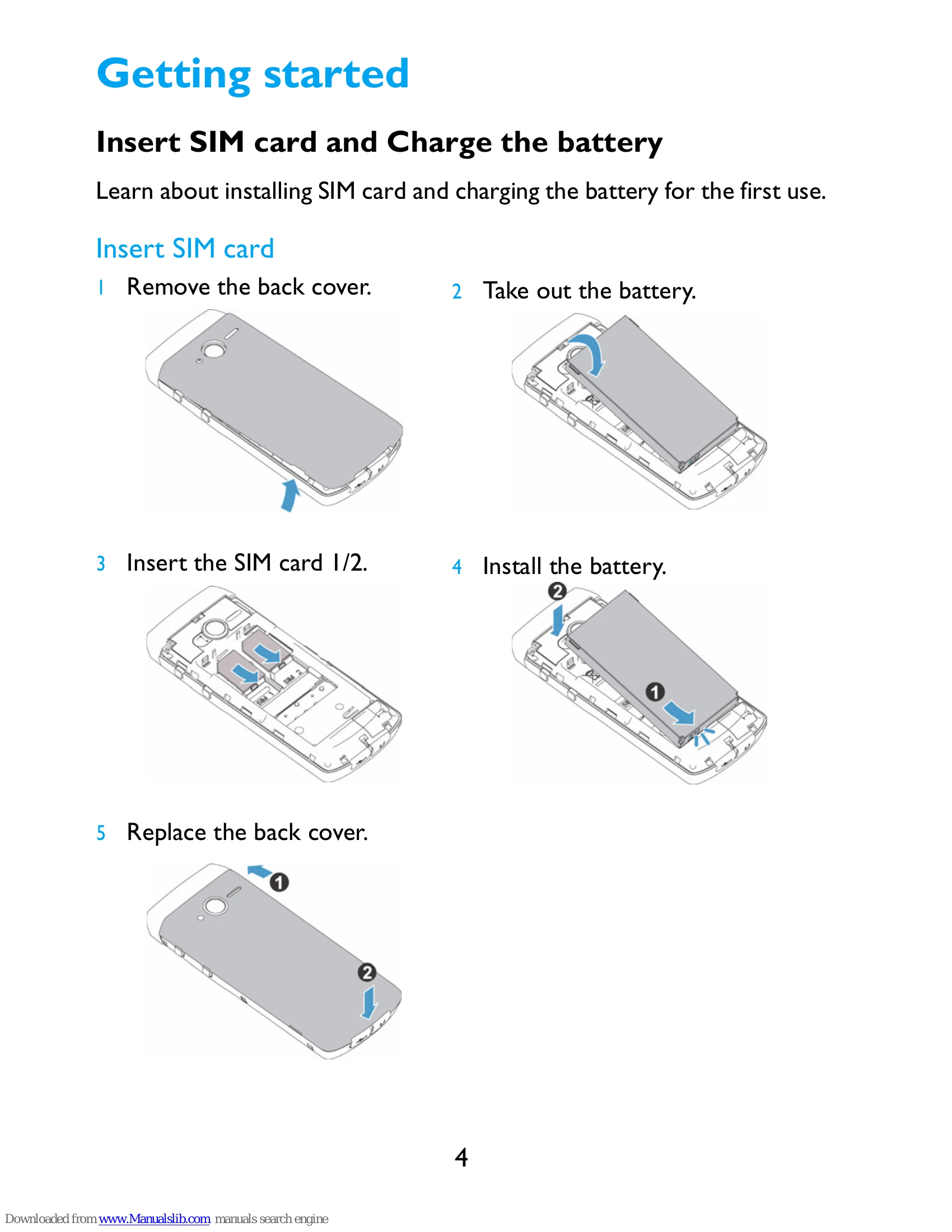
Insert SIM card and charge the battery. Follow steps to remove back cover, take out battery, insert SIM card, install battery, and replace back cover.
A new battery is partially charged. The battery icon shows the charging status. Tips include using the phone while charging and removing the battery if not in use for several days.
Expand memory by aligning and inserting a micro-SD card into the slot. Press to release for removal.
Set time & date, configure SIM settings (Dual SIM, Primary SIM), and adjust Profiles for ringtones and volume.
Make calls by entering numbers and pressing the dial key. Answer/end calls using the appropriate keys. Use speed dial for quick access to contacts. Send and receive SMS, MMS, and E-mails.
Use the Media player for music and Camera to take photos. View photos and adjust camera settings. Record and play video clips.
Listen to radio stations using the supplied headset. Auto search for channels and configure FM radio settings.
Manage calendar with to-do lists and set alarms. Use Bluetooth to connect with devices and exchange data. Check world clock and use currency converter.
Access web sites using Opera Mobile. Install and play Java games and applications.
General settings include SIM settings, Language, Shortcuts, Speed dial, Memory status, Auto keypad lock, Unlock style, Auto power, and Security settings. Display settings include Wallpaper, Themes, Backlight, Font settings, Greeting text, etc. Call settings cover Predictive dial, Headset answer, Any key answer, and Call time reminder.
Configure Network settings and Connections for Internet access.
Keep phone away from small children, be aware of radio waves, switch off phone in certain locations, handle carefully, and protect batteries.
Optimize battery performance by adjusting settings, managing SIM usage, turning off unused applications, and using authentic accessories.
| Problem | Solution |
|---|---|
| The phone does not switch on | Remove/reinstall the battery. Then charge the phone until the battery icon stops scrolling. Unplug the charger and try to switch the mobile on. |
| The display shows BLOCKED when you switch on the phone | Somebody tried to use your phone but didn't know the PIN code nor the unblocking code (PUK). Contact your service provider. |
| The display shows IMSI failure | This problem is related to your subscription. Contact your operator. |
| Your phone doesn't return to idle screen | Long press the hang-up key or switch off the phone, check that the SIM card and the battery are installed correctly and switch it on again. |
| The network symbol is not displayed | The network connection is lost. Either you are in a radio shadow (in a tunnel or between tall buildings) or you are outside the network coverage area. Try from another place, try to reconnect to the network (especially when abroad), check that the antenna is in place if your mobile has an external antenna, or contact your network operator for assistance/information. |
| The display doesn't respond (or the display responds slowly) to key presses | The display responds more slowly at very low temperatures. This is normal and does not affect the operation of the phone. Take the phone to a warmer place and try again. In other cases please contact your phone supplier. |
| Your battery seems to over heat | You might be using a charger that was not intended for use with your phone. Make sure you always use the Philips authentic accessory shipped with your phone. |
| Your phone doesn't display the phone numbers of incoming calls | This feature is network and subscription dependent. If the network doesn't send the caller's number, the phone will display Call I or Withheld instead. Contact your operator for detailed information on this subject. |
| You can't send text messages | Some networks don't allow message exchanges with other networks. First check that you have entered the number of your SMS centre, or contact your operator for detailed information on this subject. |
| You can't receive and/or store JPEG pictures | A picture may not be accepted by your mobile phone if it is too large, if its name is too long, or if it doesn't have the correct file format. |
| You feel that you have missed some calls | Check your call divert options. |
| When charging, the battery icon shows no bar and the outline is flashing | Only charge the battery in an environment where the temperature does not go below 0°C (32°F) or above 50°C (113°F). In other cases please contact your phone supplier. |
| The display shows SIM failure | Check that the SIM card has been inserted correctly. If the problem persists, your SIM card may be damaged. Contact your operator. |
| When attempting to use a feature in the menu, the display shows NOT ALLOWED | Some features are network dependent. They are only available, therefore, if the network or your subscription supports them. Contact your operator for detailed information on this subject. |
| The display shows INSERT YOUR SIM CARD | Check that the SIM card has been inserted correctly. If the problem persists, your SIM card may be damaged. Contact your operator. |
| The autonomy of your phone seems lower than indicated on the user guide | The autonomy is linked to your settings (e.g., ringer volume, backlight duration) and the features you use. To increase the autonomy, and whenever possible, you must deactivate features you do not use. |