Brand: YAMAHA
Category: Audio/Video
Document Type: Manual
Language: EN
Brand: YAMAHA
Category: Audio/Video
Document Type: Manual
Language: EN
Uploaded: Nov. 21, 2025, 7:20 p.m.
Manual Publish Date: null
No warranty period information is available in the provided document.
| Problem | Solution |
|---|---|
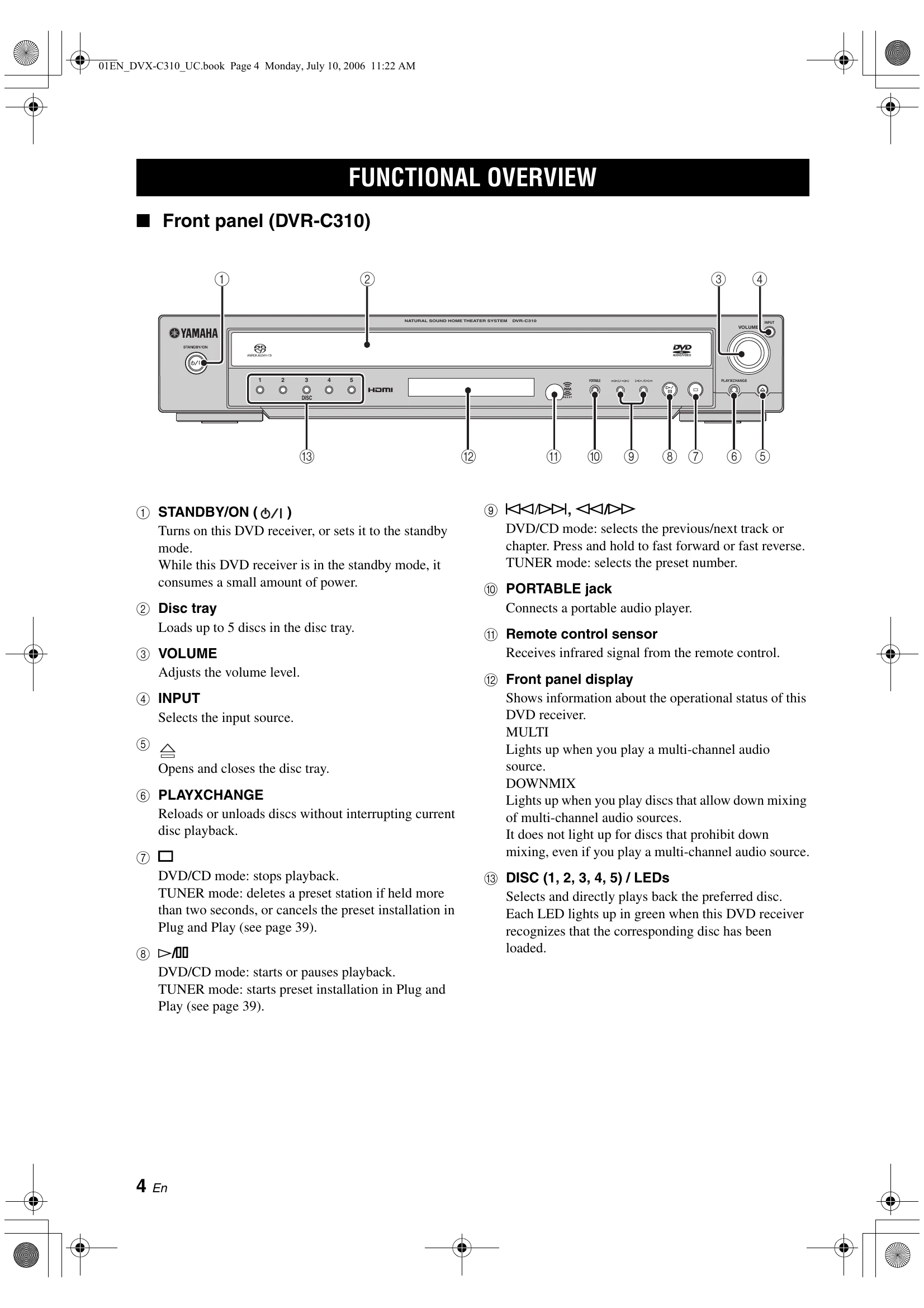
| No power | Check if the AC power cord is properly connected. Press STANDBY/ON on the front panel of this DVD receiver to turn on the power. |
| No picture | Refer to your TV's manual for correct Video In channel selection. Change the TV channel until you see the DVD screen. Press DVD/CD on the remote control in order to switch to DVD/CD mode. |
| Completely distorted picture or black/white picture | If this happens when you are changing the setting of the 'TV TYPE', wait for 15 seconds for auto recovery. If this happens when you are turning on the progressive scan feature, wait for 15 seconds for auto recovery. Check the video connection. Sometimes a small amount of picture distortion may appear. This is not a malfunction. |
| The aspect ratio of the screen cannot be changed even though you have set the TV display | Clean a disc. The aspect ratio is fixed on the DVD disc. Depending on the TV, it may not be possible to change the aspect ratio. |
| No sound or distorted sound | Adjust the volume. |
| Sound is too low on one side | Check if the system cable is properly connected. Check if all speaker cables are properly connected. Make sure that the audio cables are connected and press the input selection buttons to select the correct input source (TV or AUX, for example) to choose the equipment that you want to hear through the DVD receiver. |
| Cannot activate some features such as Angles, Subtitles, or multi-language Audio | Check if the AC power cord of the subwoofer is properly connected. Make sure that you use a disc supported by the DVD receiver. Check if all cables are properly connected. The features may not be available on the DVD receiver. Changing the language for the sound or subtitle is prohibited on the DVD. |
| DVD videos cannot be copied with the VCR | Some DVDs are copy protected. You cannot record copy-protected discs using a VCR. |
| The disc is ejected without an operation | Make sure that you use a disc supported by the DVD receiver. Press STOP twice before selecting the setup menu. Depending on the disc, some menu items are not available. |
| Not able to select some items in the setup menu | Insert a readable disc with the playback side facing down. The DVD-R/ DVD+R/DVD-RW/DVD+RW/CD-R/CD-RW/DVD-RW (VR format) must be finalized. Check the disc type, color system (PAL or NTSC) of your TV and region code of the disc. Check for any scratches or smudges on the disc. Press SET UP to turn off the setup menu screen. You may need to enter the password in order to change the parental control rating level or to unlock the disc for playback. Moisture has condensed inside the DVD receiver. Remove the disc and leave this DVD receiver turned on for about an hour. |
| The DVD receiver does not start playback | Insert a readable disc with the playback side facing down. The DVD-R/ DVD+R/DVD-RW/DVD+RW/CD-R/CD-RW/DVD-RW (VR format) must be finalized. Check the disc type, color system (PAL or NTSC) of your TV and region code of the disc. Check for any scratches or smudges on the disc. Press SET UP to turn off the setup menu screen. You may need to enter the password in order to change the parental control rating level or to unlock the disc for playback. Moisture has condensed inside the DVD receiver. Remove the disc and leave this DVD receiver turned on for about an hour. |
| A source cannot be recorded by an analog component connected to the DVD receiver | Connect the source component to the LINE OUT jacks of the DVD receiver. |
| Sounds played on the AV equipment connected to the DVD receiver cannot be recorded with external recording equipment | Connect those equipment to the DVD receiver with analog connections. |
| The volume does not increase or sounds are distorted | Turn on the power of the component connected to the DVD receiver. |
| There is no sound from the center, surround speakers and subwoofer | Make sure the center, surround speakers and subwoofer are connected correctly. Adjust the volume level in the setup menu. Press SURR button to select a correct surround sound setting. Make sure the source you are playing is recorded or broadcast in surround sound (DTS, Dolby Digital, etc.). |
| "SPEAKER ERR" appears in the display panel | Unplug the subwoofer, then make sure the front, center and surround speakers are connected correctly. |
| Unable to play DivX® movies | Check that the DivX® file was encoded in 'Home Theater' mode with a DivX® 5.x encoder. |
| The DVD receiver does not work | Set the DVD receiver to the standby mode, then disconnected the power cord. Wait for about 30 seconds, then reconnect the power cord and turn on the DVD receiver. |
| The remote control does not work for operating other equipment | Set the correct remote control code. Depending on the model and year of the product, the DVD receiver's remote control may not be able to operate it partly or wholly. In this case, use the remote control supplied with each product. |
| The remote control does not function properly | Select the source (DVD/CD or TUNER, etc.) before pressing the function button (▷, K/). Reduce the distance between the remote control and this DVD receiver. Replace the batteries with new ones. |
| Radio reception is poor | If the signal is too weak, adjust the antenna or connect an external antenna for better reception. Increase the distance between this DVD receiver and your TV or VCR. Tune in to the correct frequency. Place the antenna farther away from any equipment that may be causing the noise. |
| "ΑΝΤΕΝΝΑ" (Status message) | Check the XM Passport System connections and orient it for the best reception level. |
| "UPDATING" (Status message) | The XM user encryption code is being updated. Wait until the encryption code is updated. |
| "NO SIGNAL" (Status message) | Check the XM Passport System connections and orient it for the best reception level. |
| "LOADING" (Status message) | If it takes longer than four seconds for audio or text data to be decoded, wait until the decoding process has finished. |
| "OFF AIR" (Status message) | Check the channel number again or select another XM Satellite Radio channel due to the XM Satellite Radio channel you selected is not currently broadcasting any signals. |
| "<XM>---" (Status message) | The Channel Station ID (SID) is no longer available. |
| "-----" (Status message) | No artist name or song title is available. |
| "CAT ---" (Status message) | No channels are available for the selected category. Select another channel category by pressing CAT– (<<)/CAT+ (▷) on the remote control repeatedly. |