Brand: ZTE
Category: Network Router
Document Type: Manual
Language: EN
Brand: ZTE
Category: Network Router
Document Type: Manual
Language: EN
Uploaded: April 20, 2026, 7:55 p.m.
Manual Publish Date: 2022-10-10
Warranty information is not explicitly detailed in this section of the manual.
Read all safety cautions carefully before using the device. Only use provided accessories. Ensure correct power supply voltage. Keep the power plug clean and dry. Disconnect cables during lightning storms. Power off and unplug when not in use for extended periods. Do not open device covers. Power off and stop use if abnormal conditions occur. Ensure proper ventilation, keep dry, and avoid spills. Do not place objects on the device. Keep away from heat, water, and strong magnetic/electric fields. Clean with a dry cloth after powering off and unplugging.
Verify the package contents against the list: ZXHN H3600P, Power Adapter, RJ-45 Ethernet Cable, RJ-11 Telephone Cable, User Manual.
Connect devices to the ZXHN H3600P, then press the power button. Place the product to maximize wireless signal strength, avoiding reflective objects, strong magnetic/electric fields, and keeping it on the same floor, horizontally in the middle of the applied area, at a height of 1.2 to 1.5 meters.
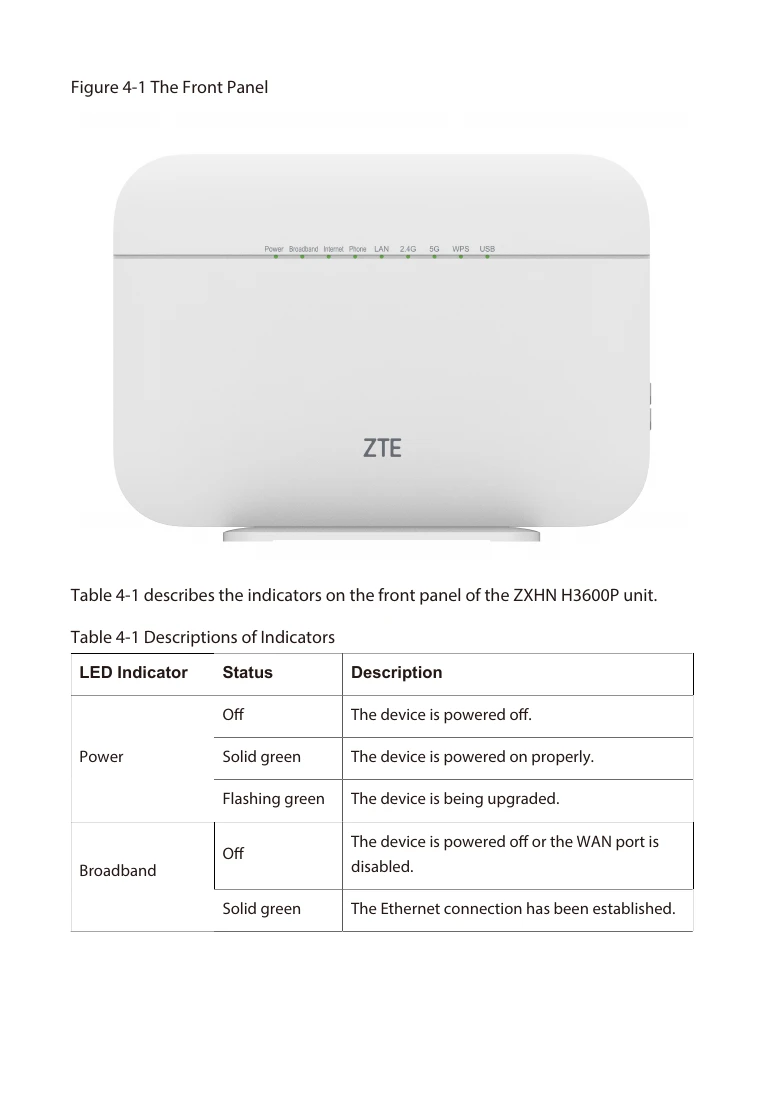
| LED Indicator | Status | Description |
| Power | Off | The device is powered off. |
| Power | Solid green | The device is powered on properly. |
| Power | Flashing green | The device is being upgraded. |
| Broadband | Off | The device is powered off or the WAN port is disabled. |
| Broadband | Solid green | The Ethernet connection has been established. |
| Internet | Off | The device is not powered on or the Ethernet connection does not exit. |
| Internet | Solid green | The WAN connection is online. The device has a WAN IP address from IPCP, DHCP or statically configured. LED remains green in the case of disconnection due to idle timeout when PPP dial-on-demand is enabled. Green LED indicates that the routing connection state is up. |
| Internet | Flashing slowly green | The Internet connection has been established and the data is being transmitted or received. |
| Internet | Flashing fast green | The WAN connection is dialing up or fails to get online.Device attempted to become IP connected and failed. |
| Phone | Off | The device has not been registered to the VOIP network. |
| Phone | Solid green | The device has registered to the VOIP network. |
| Phone | Flashing green | The associated telephone is off-hook. |
| LAN | Off | The LAN connection has not been established. |
| LAN | Solid green | The LAN connection has been established. |
| LAN | Flashing green | Data transmission is in processing, The indicator flashes according to the LAN traffic. |
| 2.4G | Off | WLAN RF switch is off. |
| 2.4G | Solid green | WLAN RF switch is on. |
| 2.4G | Flashing green | WLAN RF switch is on and the data is being transmitted or received, and the flashing frequency indicates Wi-Fi network traffic. |
| 5G | Off | WLAN RF switch is off. |
| 5G | Solid green | WLAN RF switch is on. |
| 5G | Flashing green | WLAN RF switch is on and the data is being transmitted or received, and the flashing frequency indicates Wi-Fi network traffic. |
| WPS | Off | No WPS access or the WPS access of the terminal exceeds 5 minutes. |
| WPS | Solid green | WPS access is successful. This solid-on light will be automatically off after 5 minutes. |
| WPS | Flashing slowly green | WLAN terminal is in WPS accessing process. |
| WPS | Flashing fast green | The WPS accessing of the WLAN terminal is faulty. |
| USB | Off | The device is powered off or the USB interface is not connected. |
| USB | Solid green | The USB interface is connected with USB device. |
| USB | Flashing green | Data is being transmitted or received via the USB interface. |